With the growing social media popularity, as a business owner, you can leverage the power of social media for the growth of your business by promoting your brand content. Local Club seamlessly integrates with your business' Twitter accounts to help you automate the following functions:
- Promoting your best reviews collected from other review sites and publishing them as 'tweets' on your company's Twitter profile right from your Local Club account.
- Once integrated, you will have the ability to respond to the tweets received on your Twitter account right within your Local Club account.
- It also gives you the ability to publish branding content on your Twitter account with ease. After publishing the branding content on your Twitter profile(s), you will have the ability to engage with your followers from within your Local Club account.
Article navigation
Integrating Twitter AccountMapping Twitter AccountsAdding more Twitter AccountsRemoving a Single AccountRemoving Multiple Accounts
Integrating Twitter Account
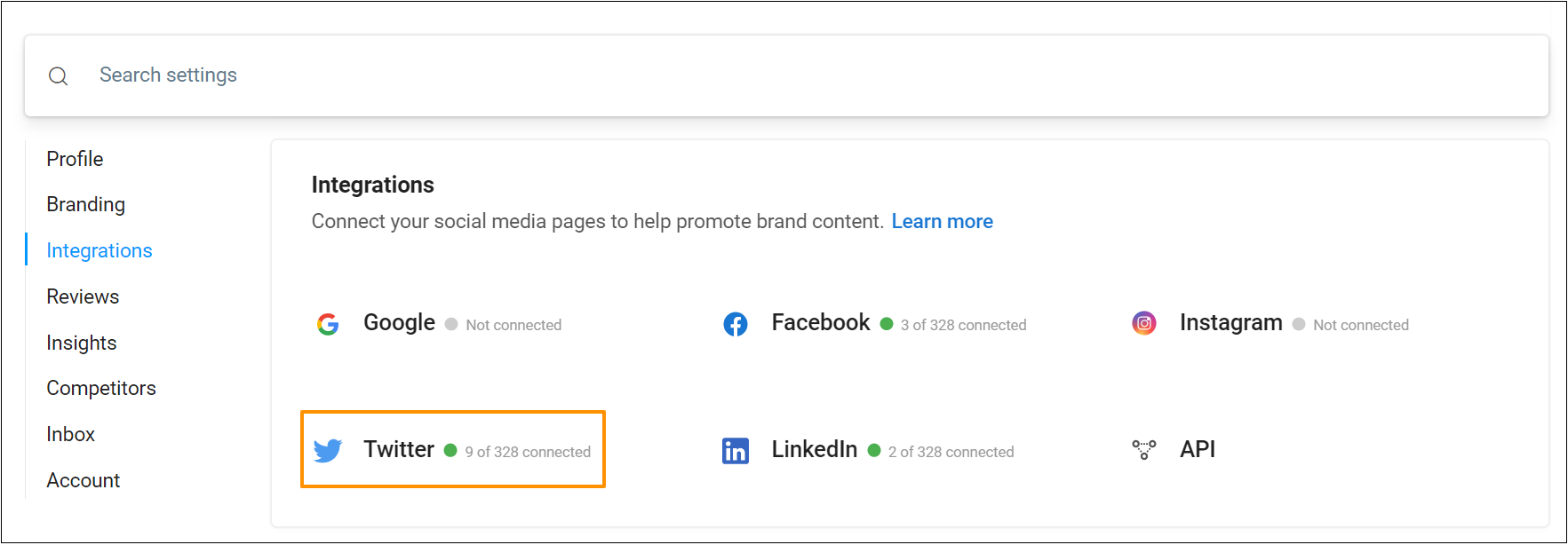
To integrate your business' Twitter account, click on the 'Settings' tab on the left navigation rail, then go to 'Integrations,' and select the 'Twitter' option.
On the new screen, click on the 'Connect with Twitter' button.

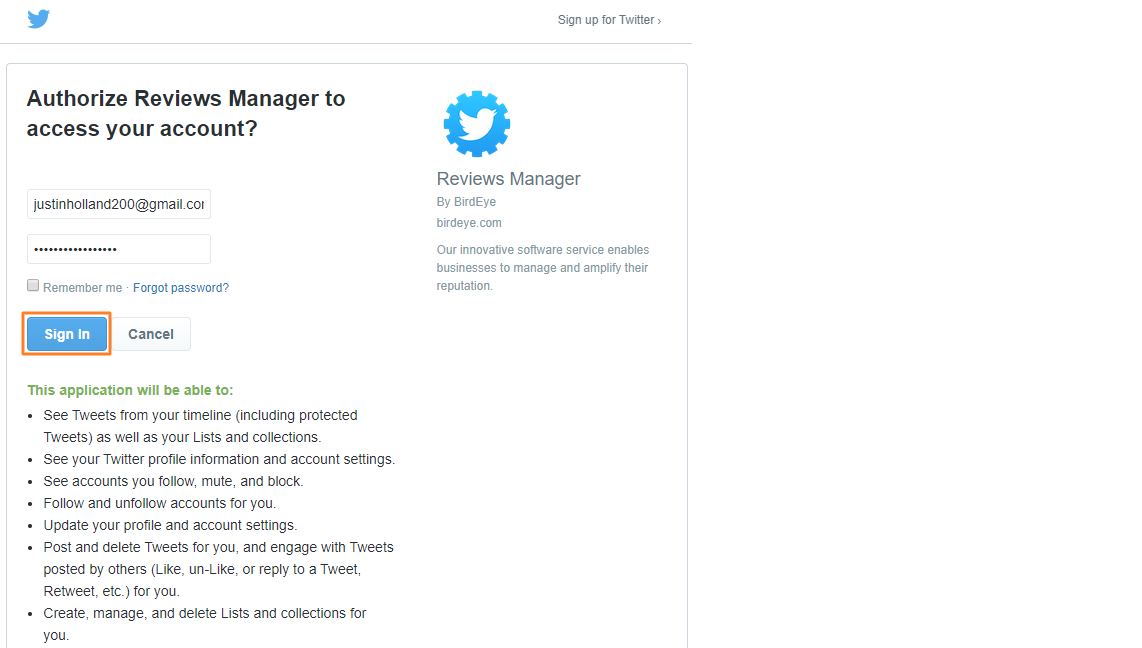
You will be redirected to Local Club’s 'Reviews Manager' page. Enter your Twitter credentials and click on the 'Sign In' button to log in to your Twitter account.
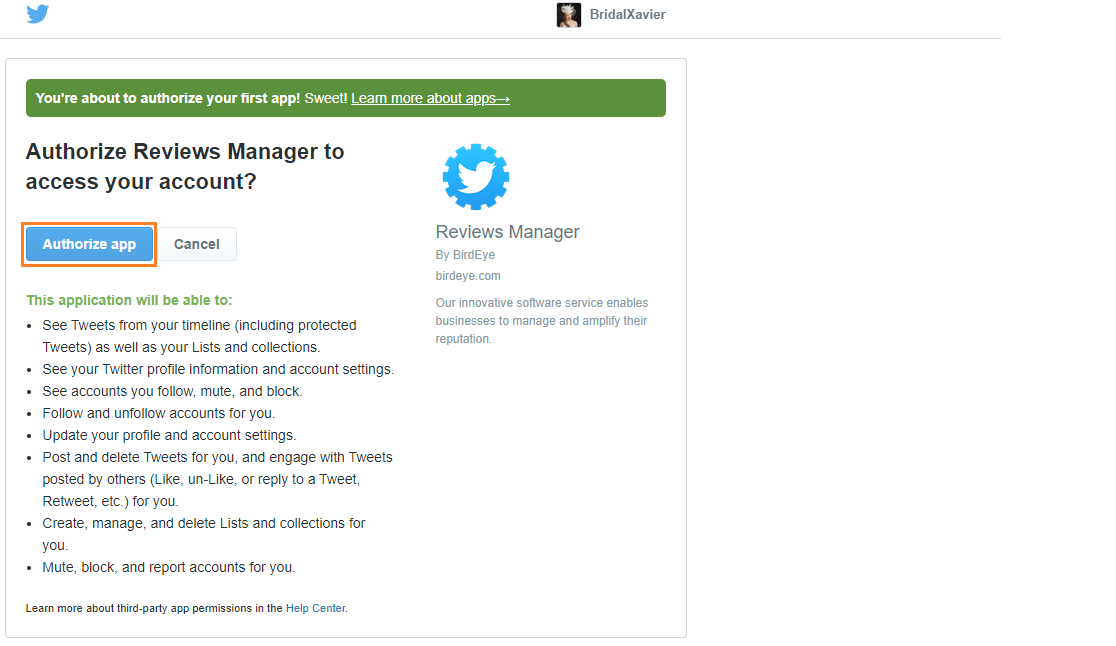
If you have already logged in, you need to authorize the Reviews Manager to access your Twitter account. Click on the 'Authorize app' button to proceed.
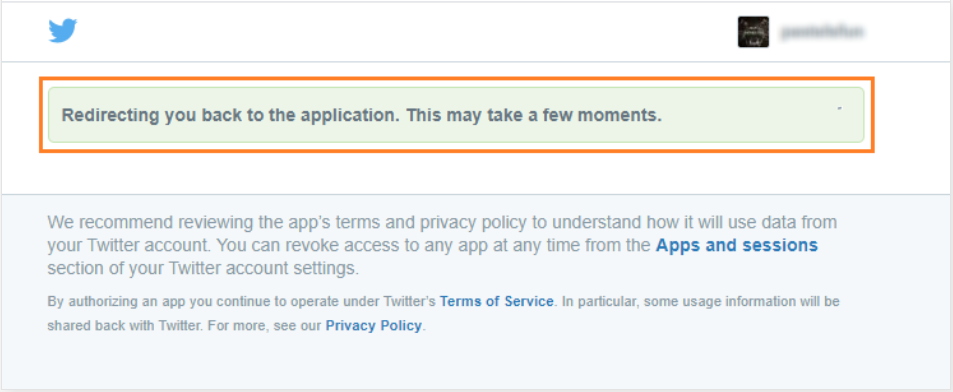
Now, you will be redirected to your Local Club account. Your Twitter page(s) will be visible here.
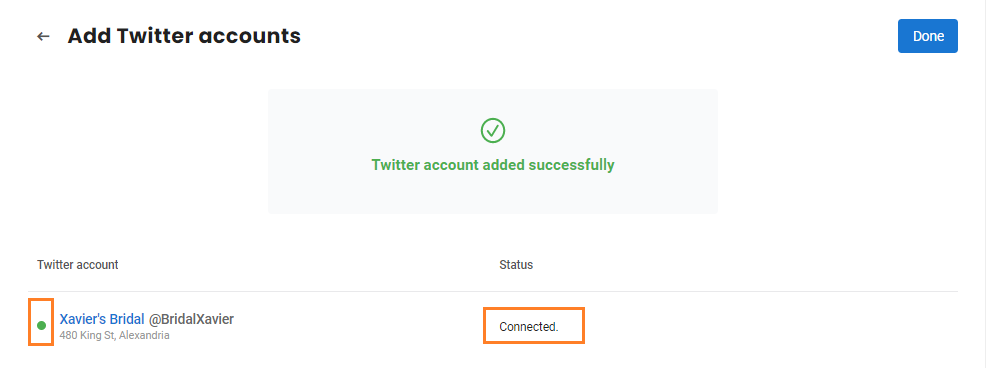
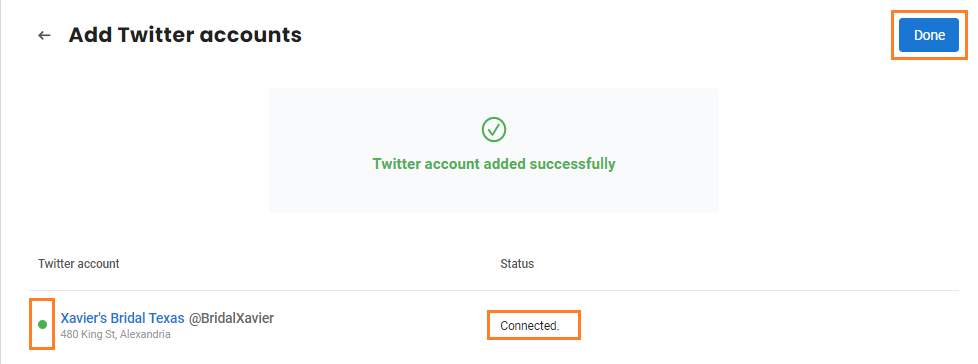
If the integration is successful, you will view a success message and the newly integrated page. Click on the 'Done' button to proceed.
Now, your Twitter account will be integrated with Local Club.
Mapping Twitter Accounts
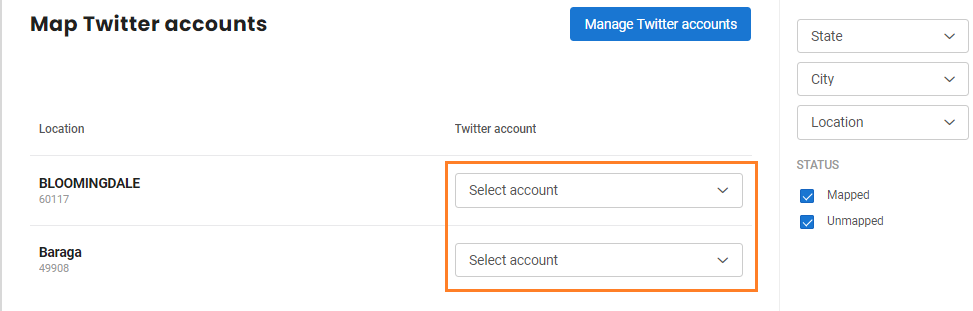
On the next screen, you can map the integrated Twitter accounts with their respective locations. Navigate to the location with which you want to map an account and click on the corresponding 'Select account' drop-down menu.
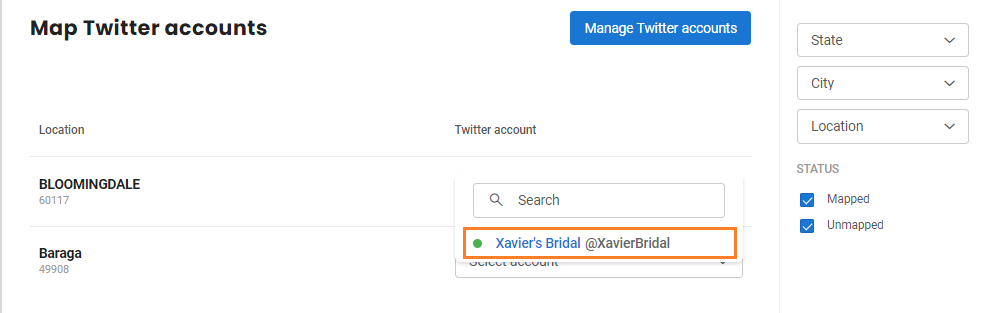
Select the account you want to map with the location from the list of all connected accounts.
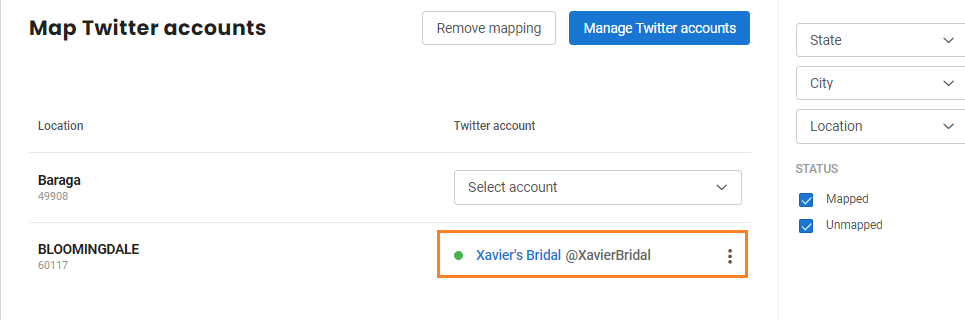
Now, you can view the account(s) mapped with the corresponding business location(s).
Adding more Twitter Accounts
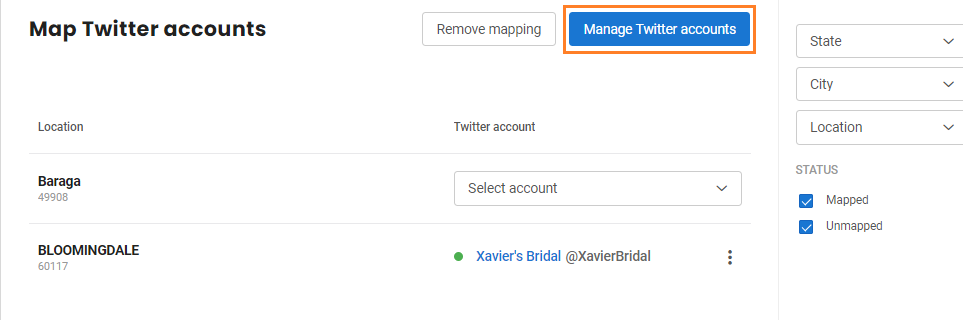
In case, you wish to integrate more Twitter accounts with Local Club in the future, click on the 'Manage Twitter accounts' button on the right.
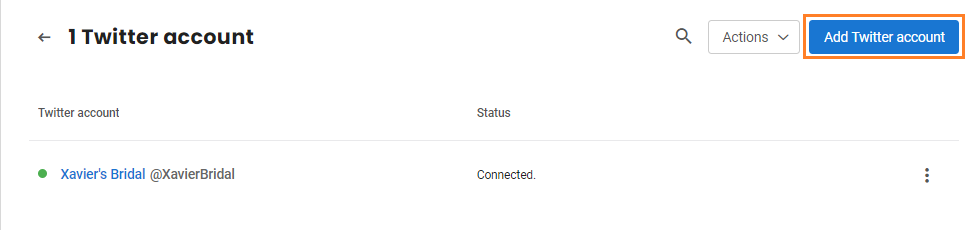
Now, click on the 'Add Twitter account' button.
If you haven't signed in to any Twitter account, a window will pop-up which allows you to login to the new account that you want to integrate with Local Club. After you login, you will be redirected to Local Club’s 'Add Twitter accounts' page.
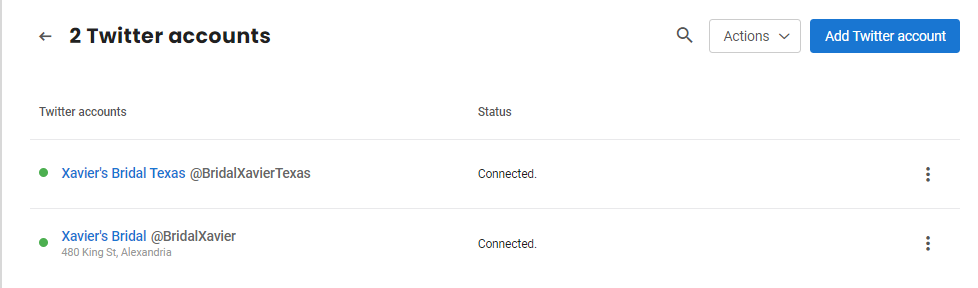
You can also view the newly added Twitter page on the 'Manage Twitter Accounts' page.
Removing a Single Account
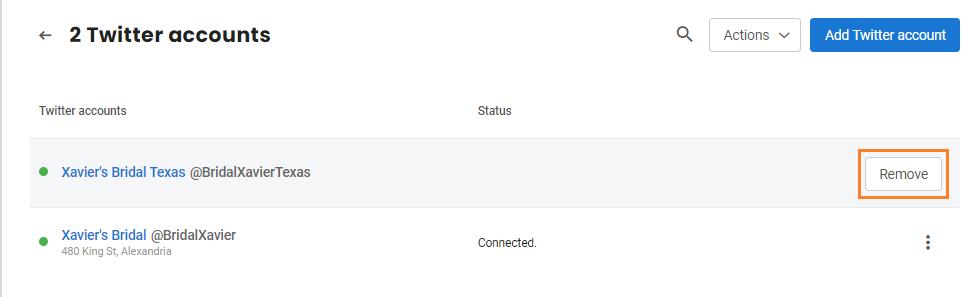
If you want to remove a single Twitter account, hover over the account you want to remove and click on the corresponding 'Remove' button.
Removing Multiple Accounts
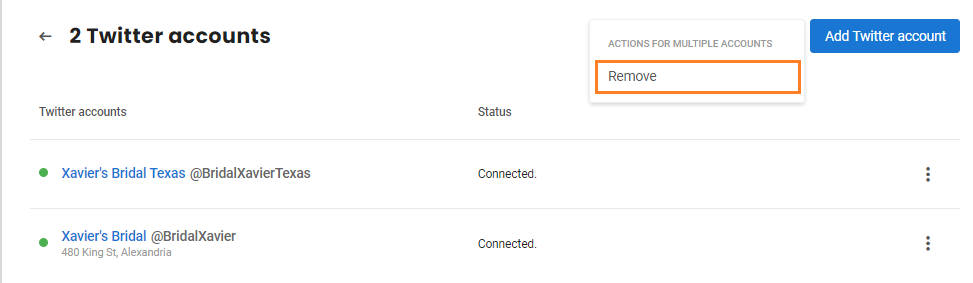
To remove multiple Twitter accounts, click on the 'Actions' drop-down button and select the 'Remove' option.
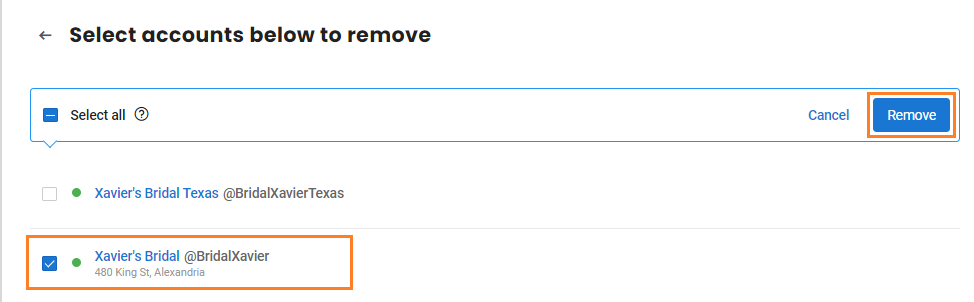
Select the account(s) and click on the 'Remove' button.
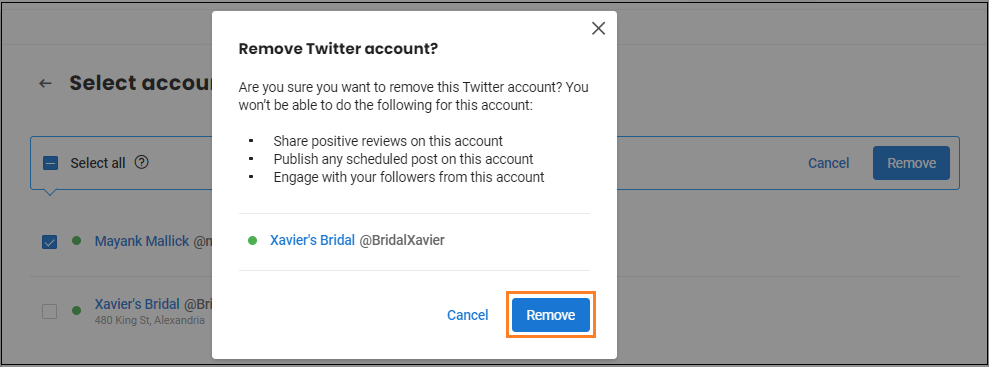
When a window pops-up click on the 'Remove' button. At this point, the Twitter page will be completely removed from your account.