With over 150 million Instagram users talking to a business every month, we know how important it is to meet your customers where they are online.
Integrating Instagram accounts with Local Club will help pull your Instagram messages into your Local Club Inbox for seamless interaction and communication with your clients and prospects, ensuring you never miss another DM.
Engage leads, answer questions, and scale your business by integrating Instagram into the all-in-one Local Club Inbox.
NOTE
Businesses can integrate only their business or creator Instagram accounts with Local Club. Personal Instagram accounts cannot be integrated with Local Club.
Article Menu:
Connect Instagram to your Facebook account
[Skip over this step if this is already done]
Business users need to connect their Instagram business or creator account with a Facebook page before they start integrating their Instagram account with Local Club.
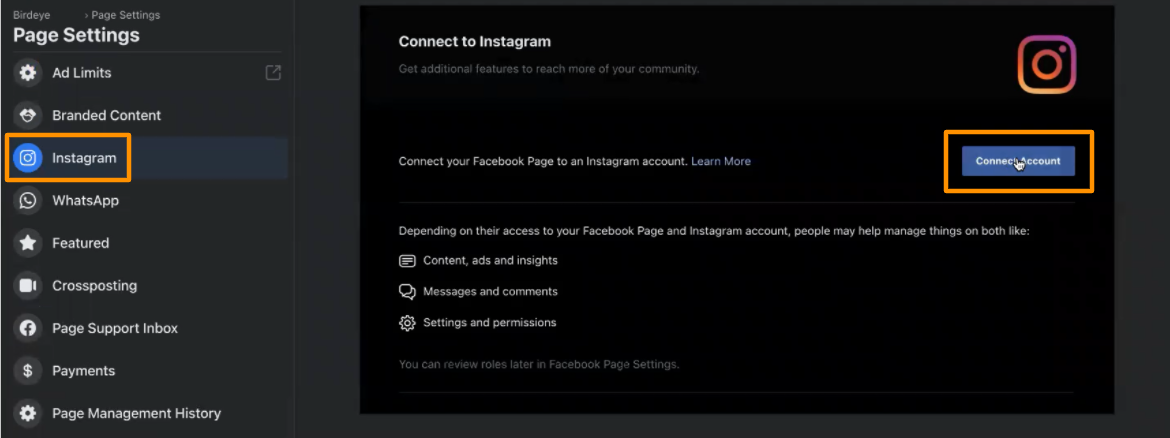
Go to your Facebook page, under ‘Page Settings,’ you will view an option called 'Instagram' and click on 'Connect Account.'
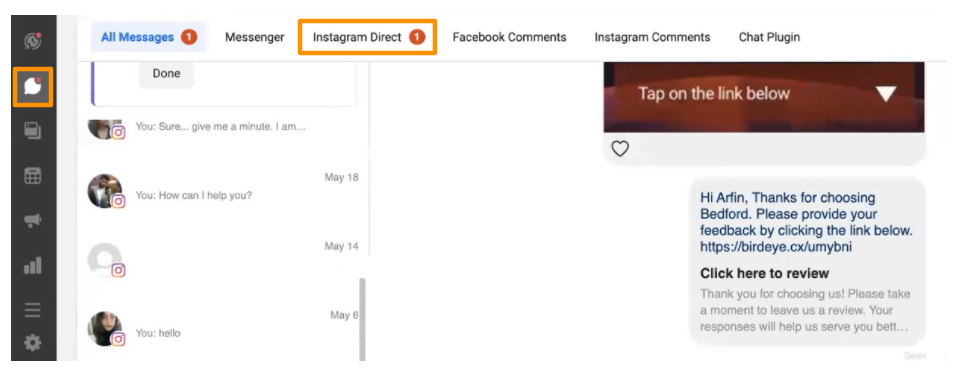
After connecting your Instagram account to Facebook, go to your Facebook page inbox. From there, you can view all your Instagram messages synchronized under the same inbox. This indicates that the Instagram account has been successfully synchronized with your Facebook page.
Integrating Instagram accounts with Local Club (Multi-location)
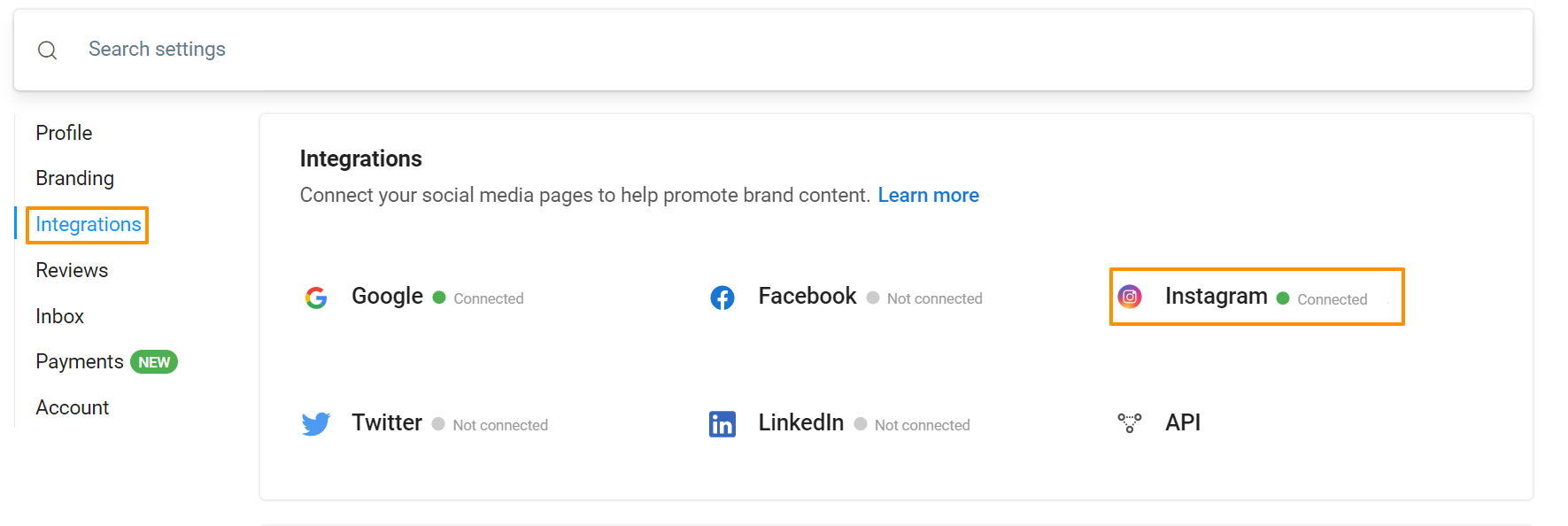
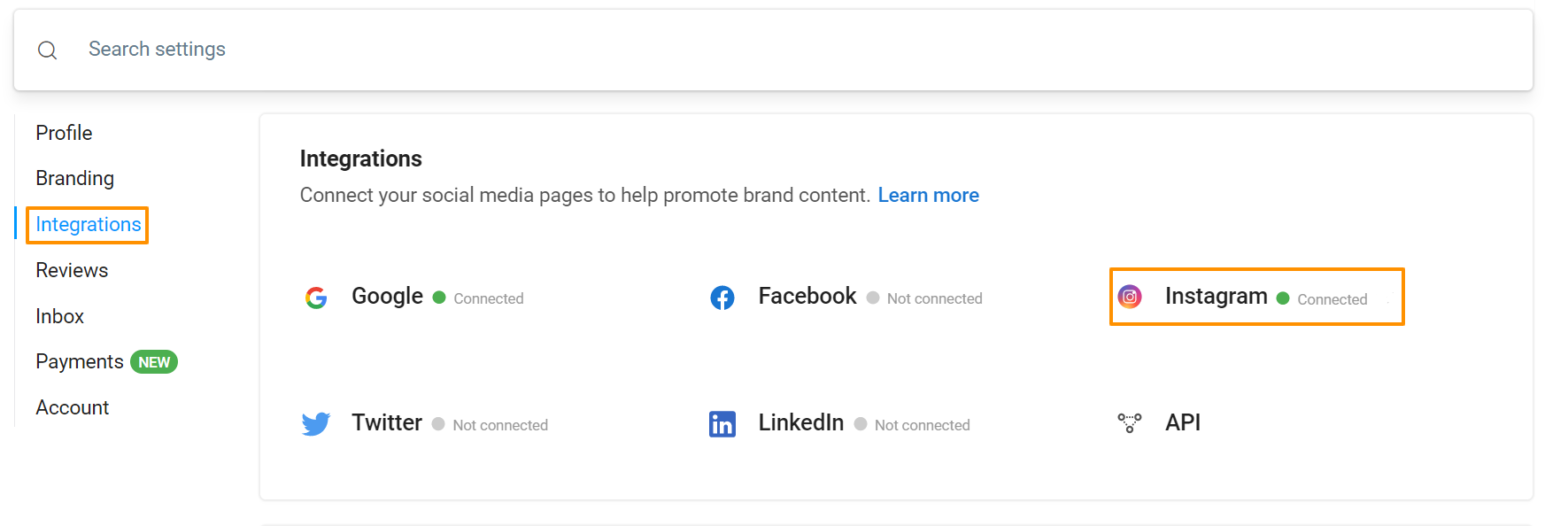
Click 'Settings' on the left navigation rail, go to the 'Integrations' tab, and click on 'Instagram.'
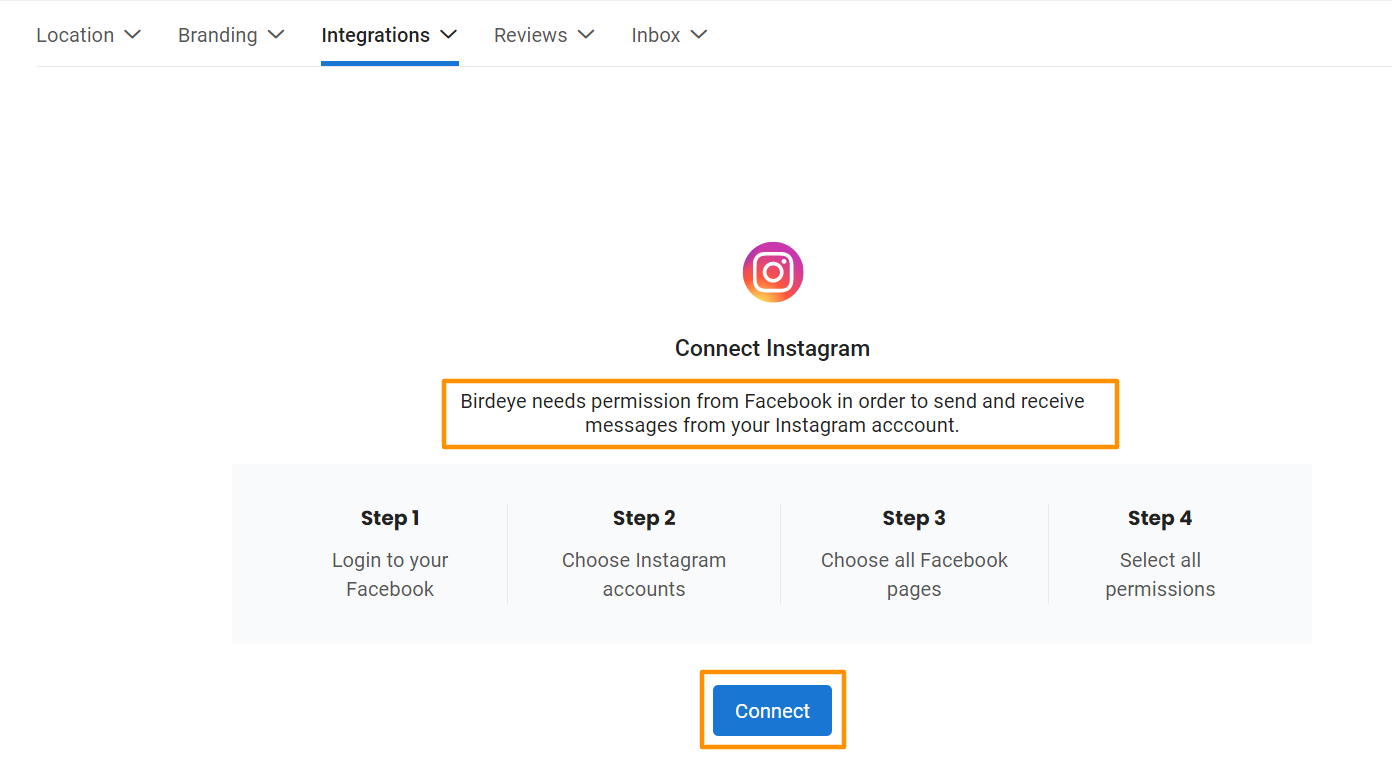
When you click on Instagram, you will see a 4-step process for integrating Instagram pages. The first step is to log in to Facebook, as Local Club requires permission from Facebook to set up your Instagram account. Click on "Connect" to start the 4-step process.
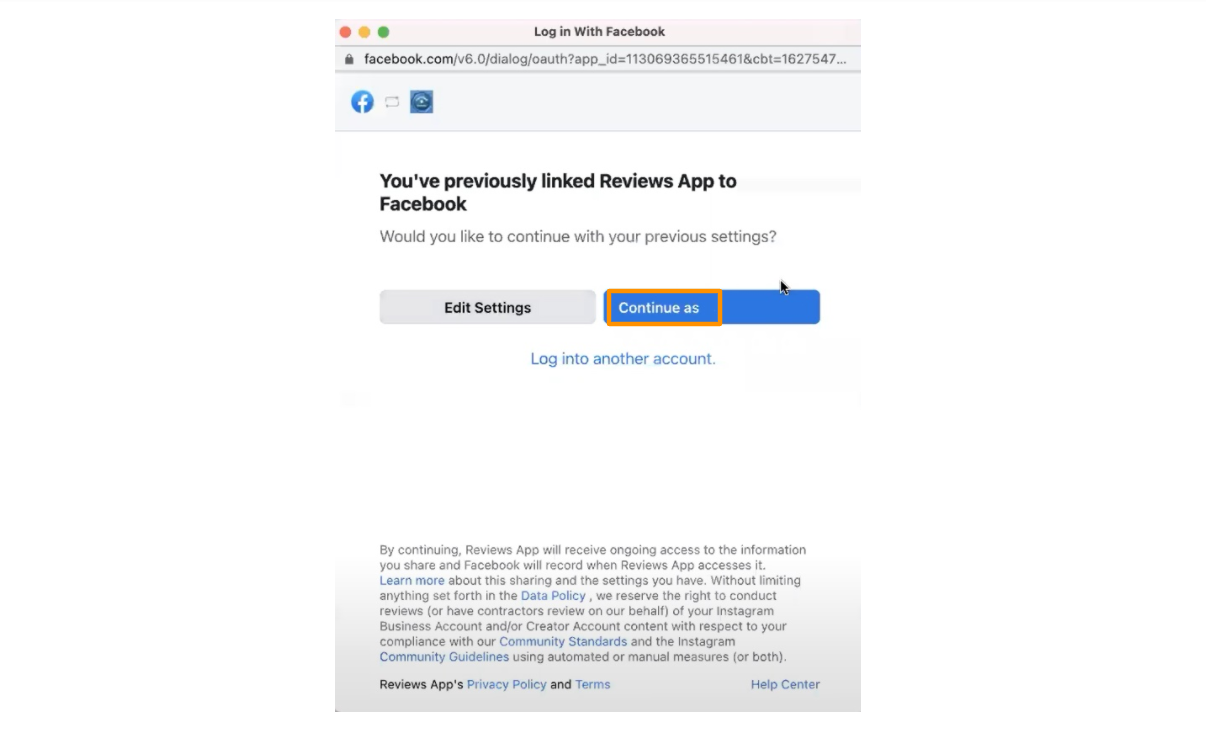
STEP 1: After you click 'Connect', you will be asked to log into your Facebook account, and if you've already logged in, then you can click on 'Continue' to carry on with your logged-in account.
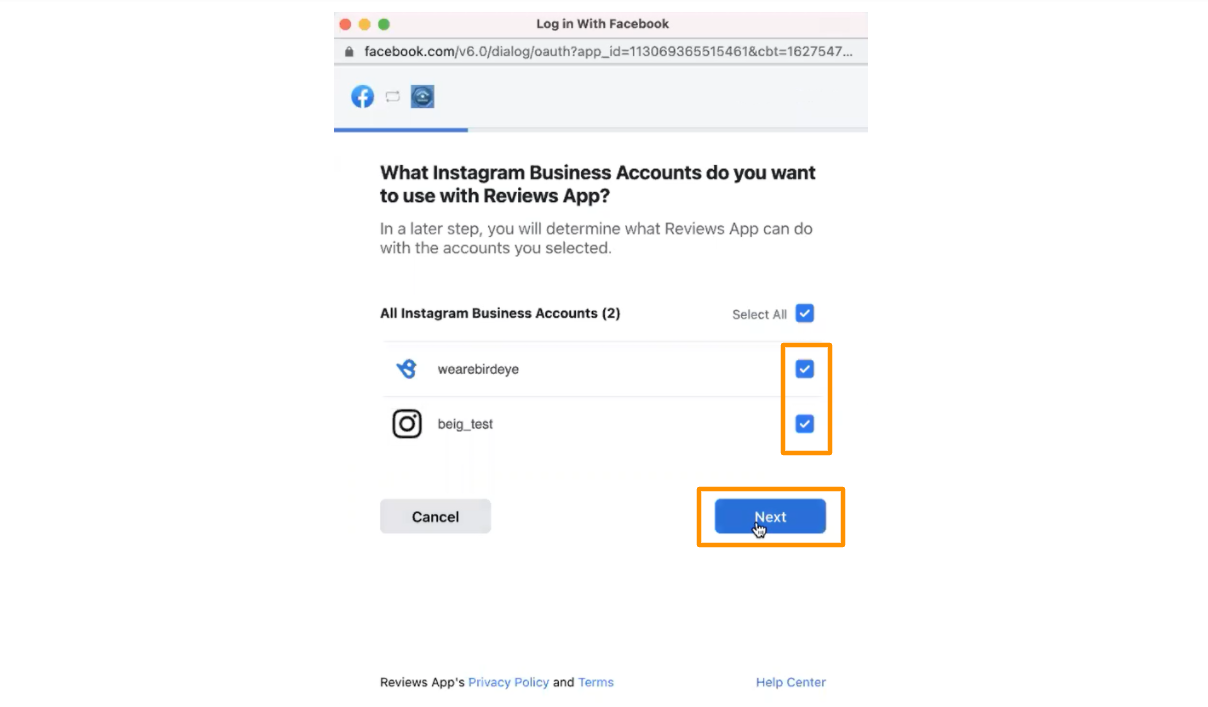
STEP 2: Select your Instagram Business/Creator accounts you wish to integrate with Local Club and click on 'Next.'
STEP 3: Select all Facebook pages that have been already integrated with your Local Club account and click 'Next.'
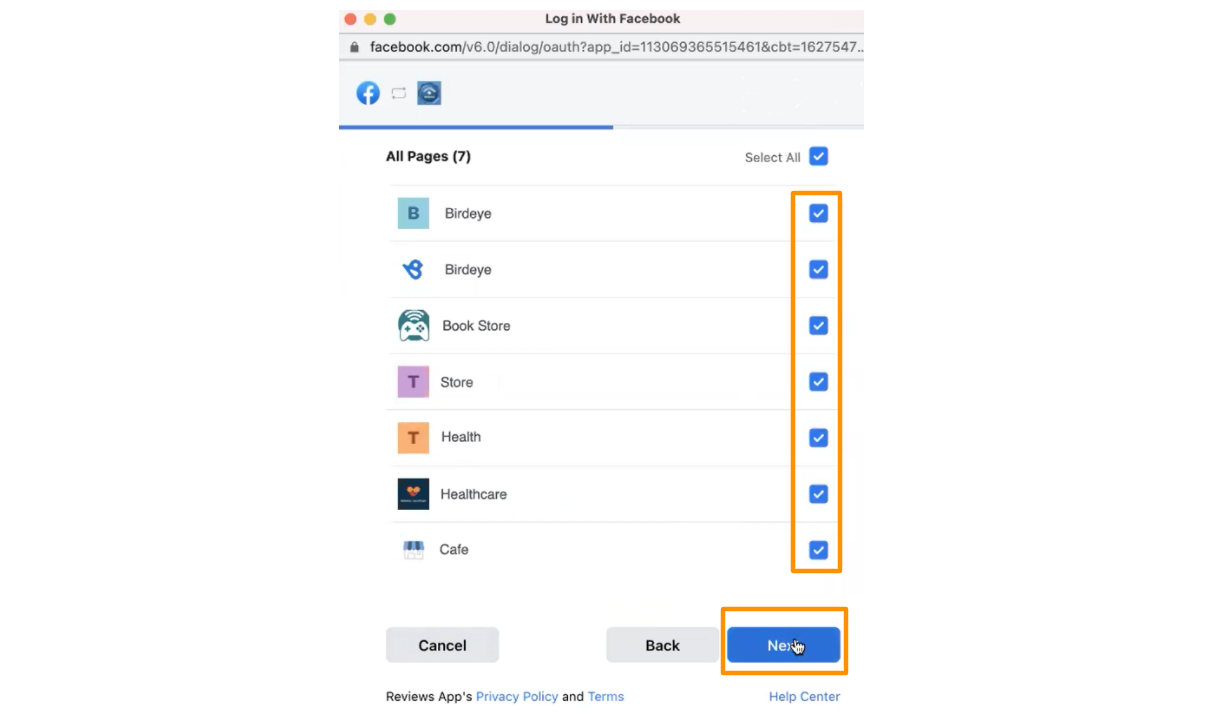
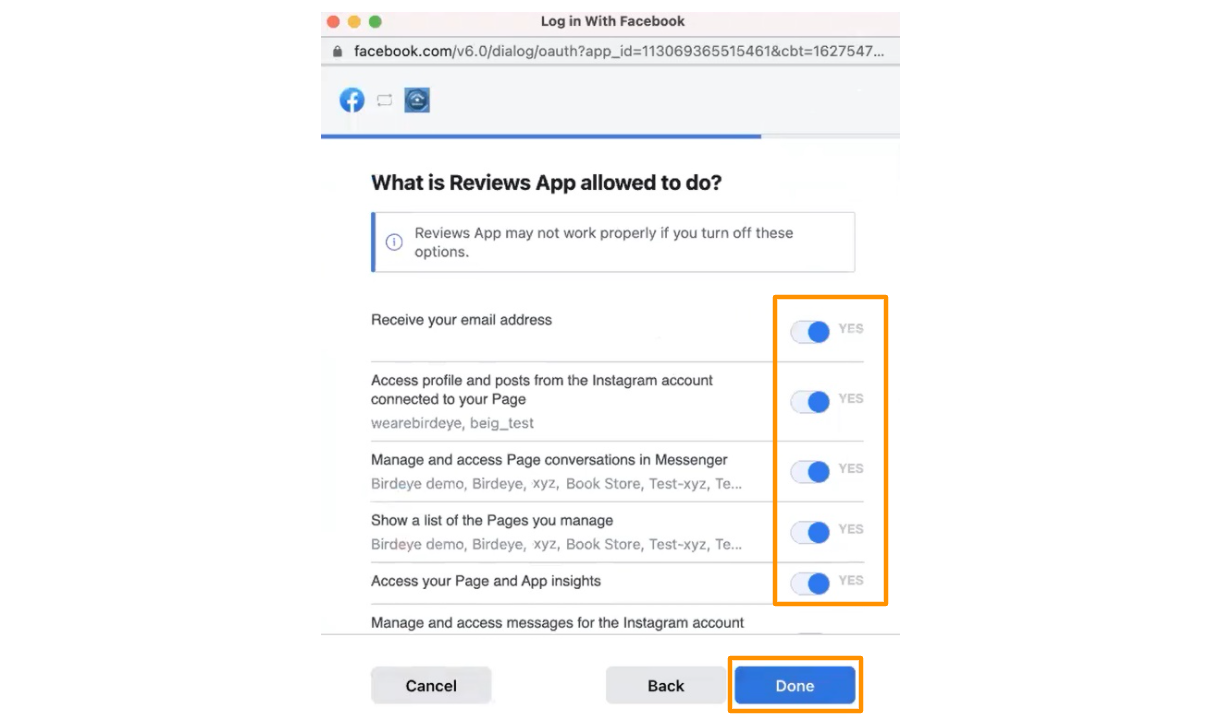
STEP 4: Allow access to page permissions, all the permissions displayed should be provided access to, and click on 'Done.'
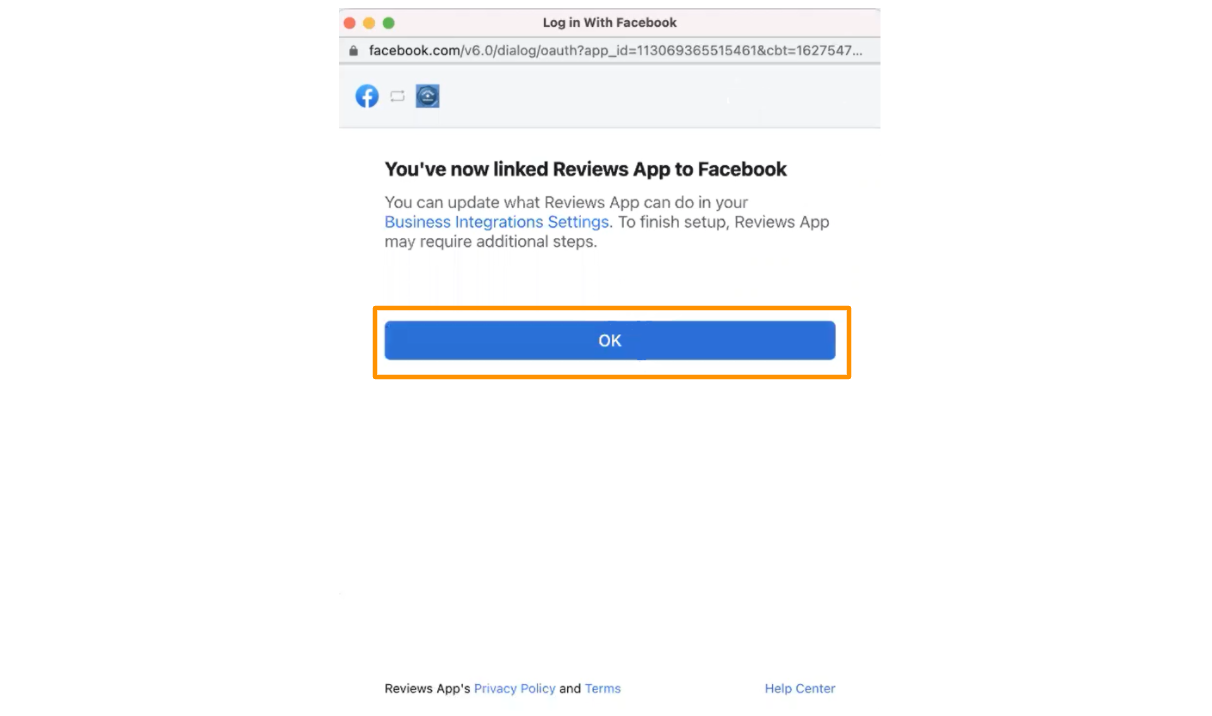
A message will confirm the integration setup is complete. Click on 'OK' to add and map Instagram accounts to the right business locations to further finish the setup.
Adding Instagram accounts
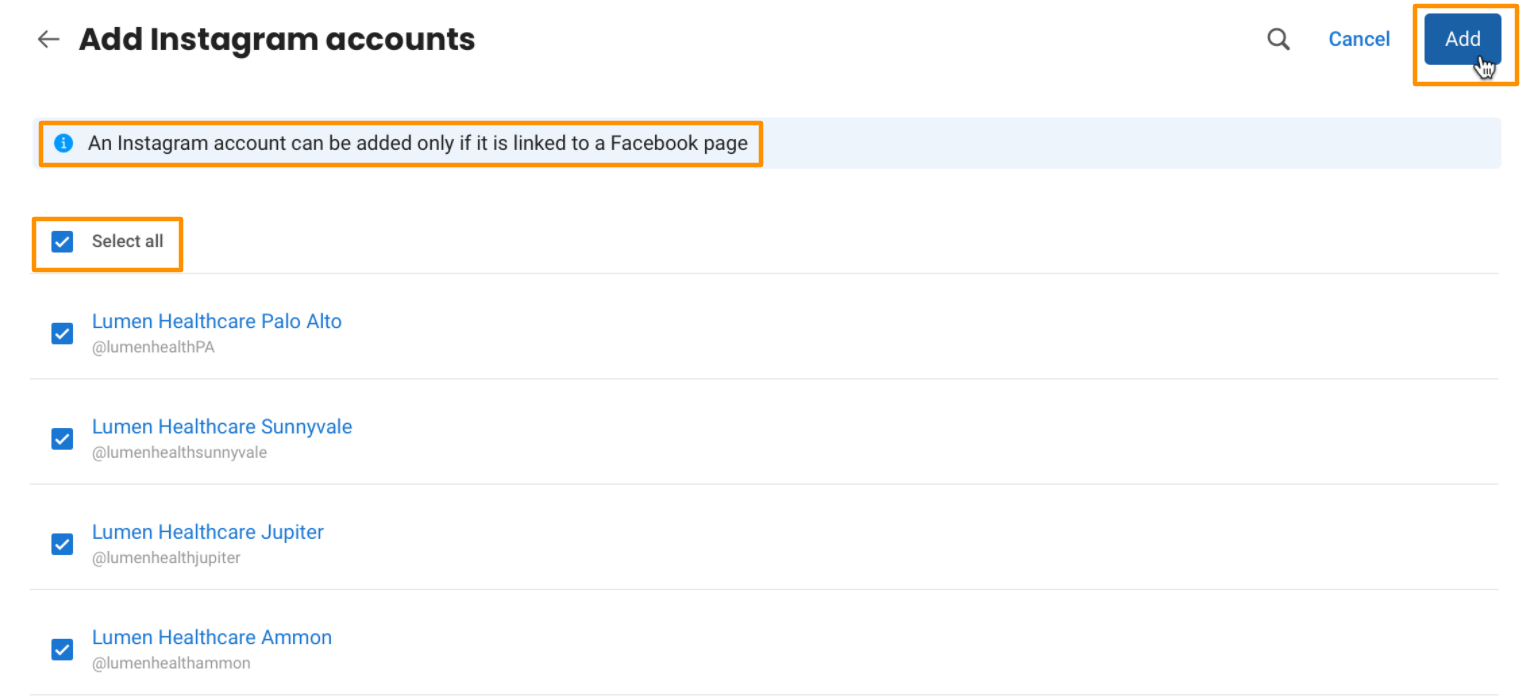
After clicking 'OK', you will view all your Instagram accounts that have been integrated and are ready to be added. You can select multiple or all accounts from the list, then click on 'Add' to include these accounts to map them further with your business locations.
NOTE
A user cannot add any Instagram account that is not linked to the Facebook page and the same message will be displayed on the screen.
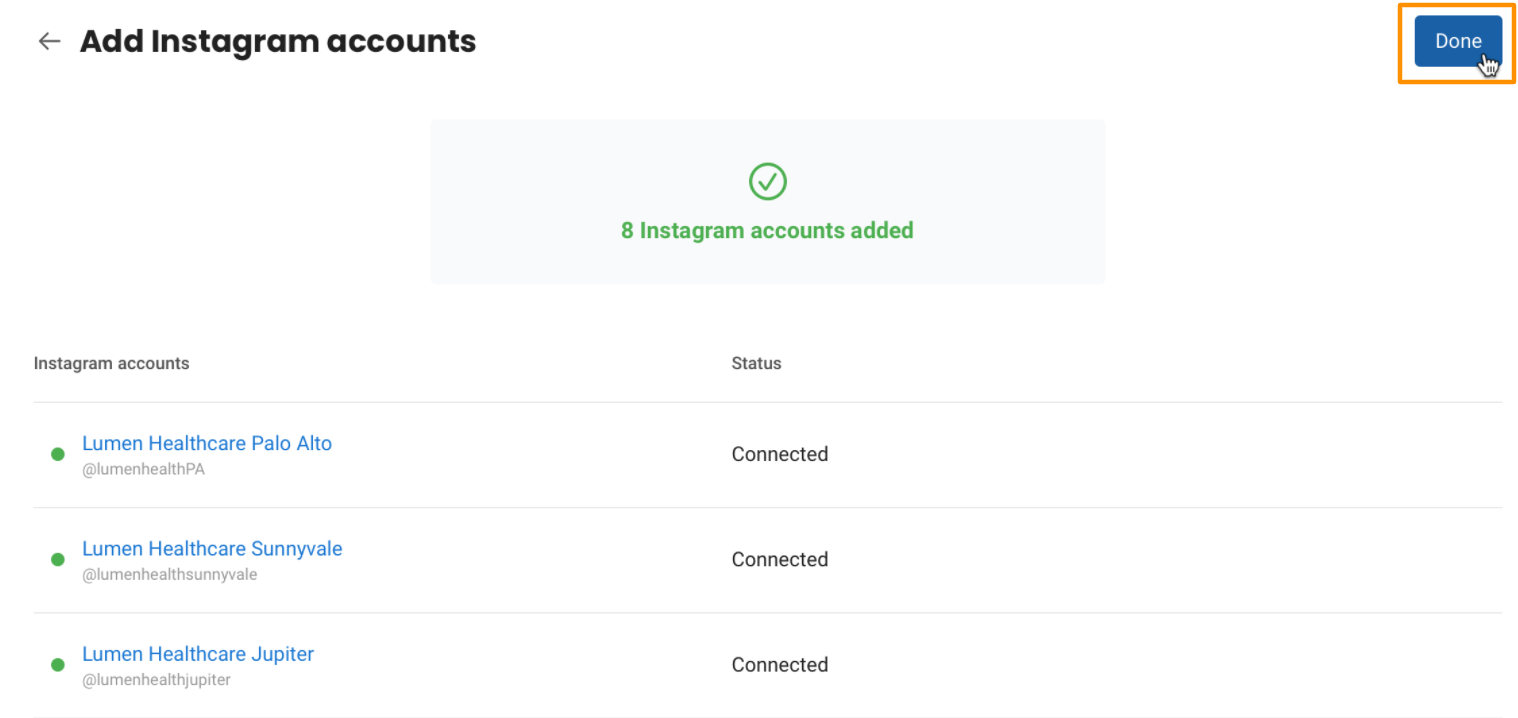
You will view a confirmation message displaying a number of Instagram accounts added successfully, click on 'Done' to map your Instagram accounts with desired business locations.
Mapping Instagram Accounts to Business Locations
Once you click on 'Done,' you will be redirected to map your Instagram accounts with your desired business locations.
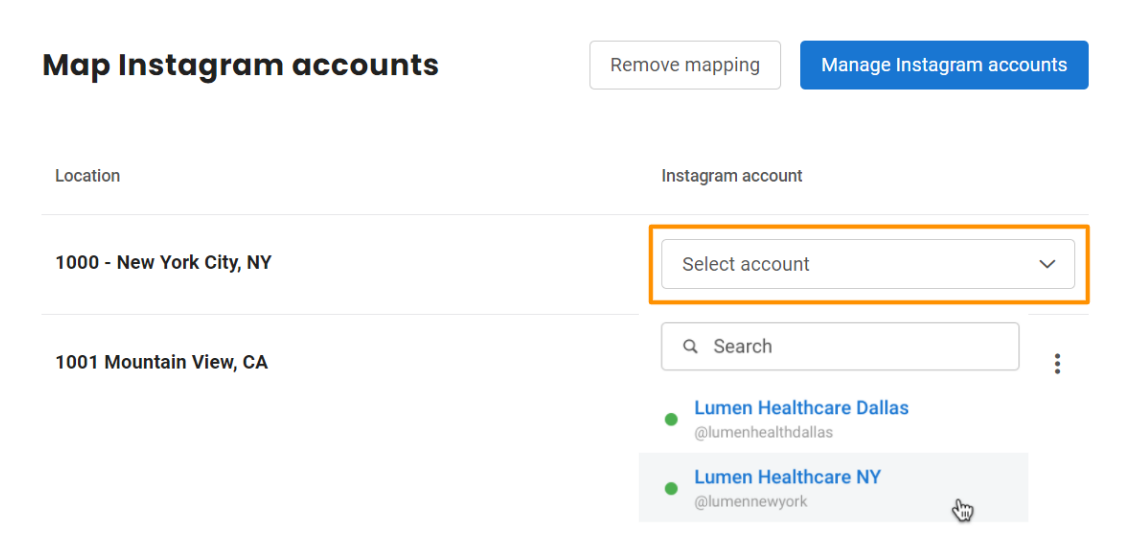
Map your Instagram accounts with the right business locations by clicking on the 'Select account' option provided parallelly to your business locations.
Remove mapping of a single account
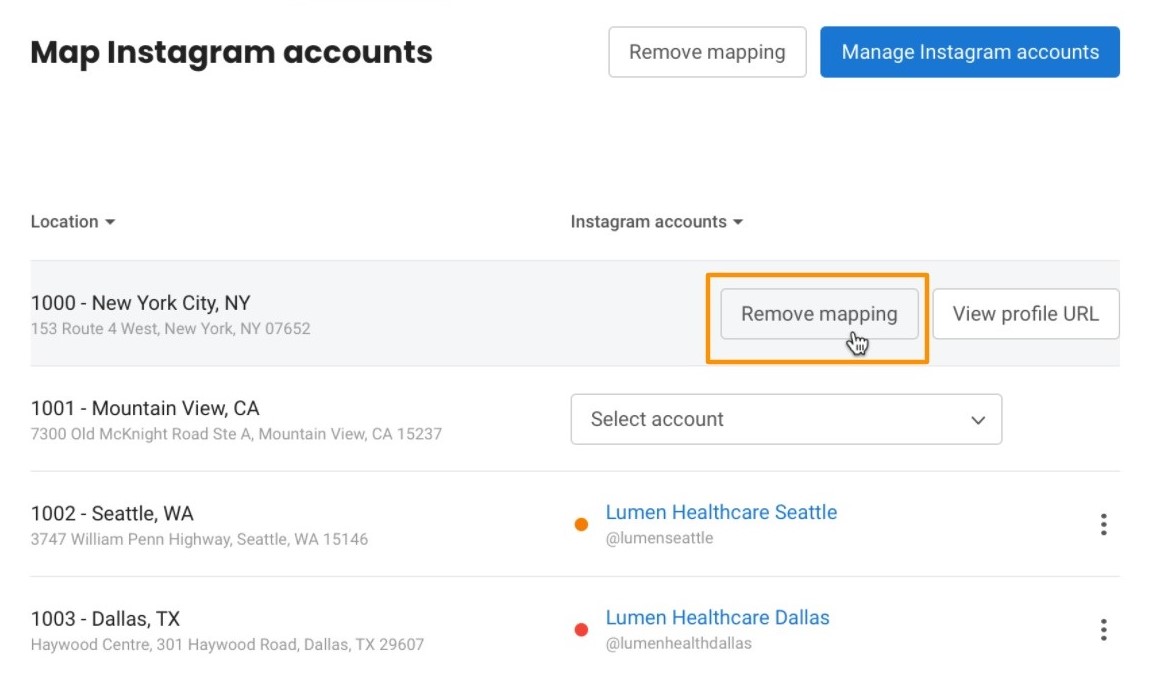
To remove the mapping of an Instagram account, go to 'Integrations,' select 'Instagram,' hover over your Instagram page name that you want to remove, and click on 'Remove mapping.'
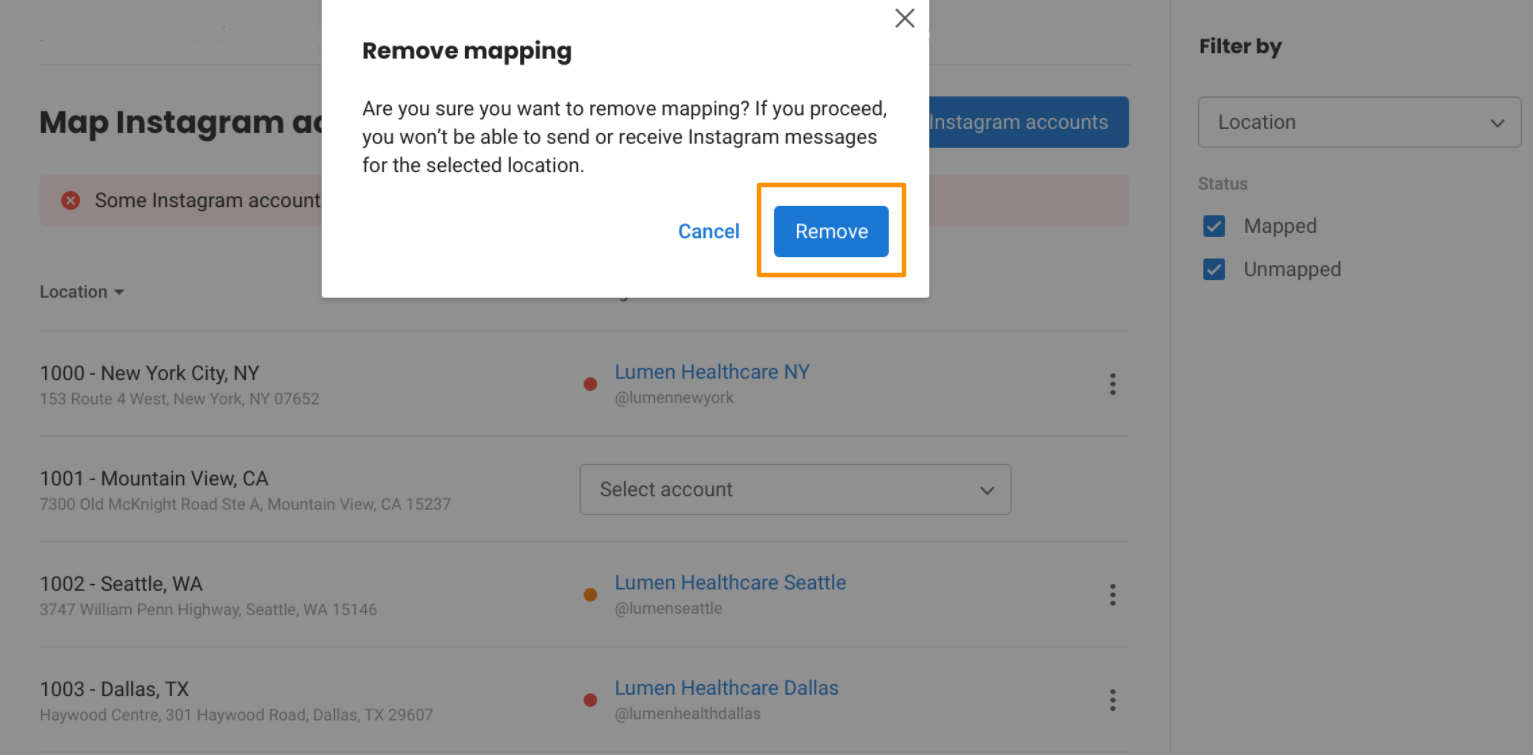
Provide a confirmation to remove by clicking on 'Remove.'
Removing the Instagram Account
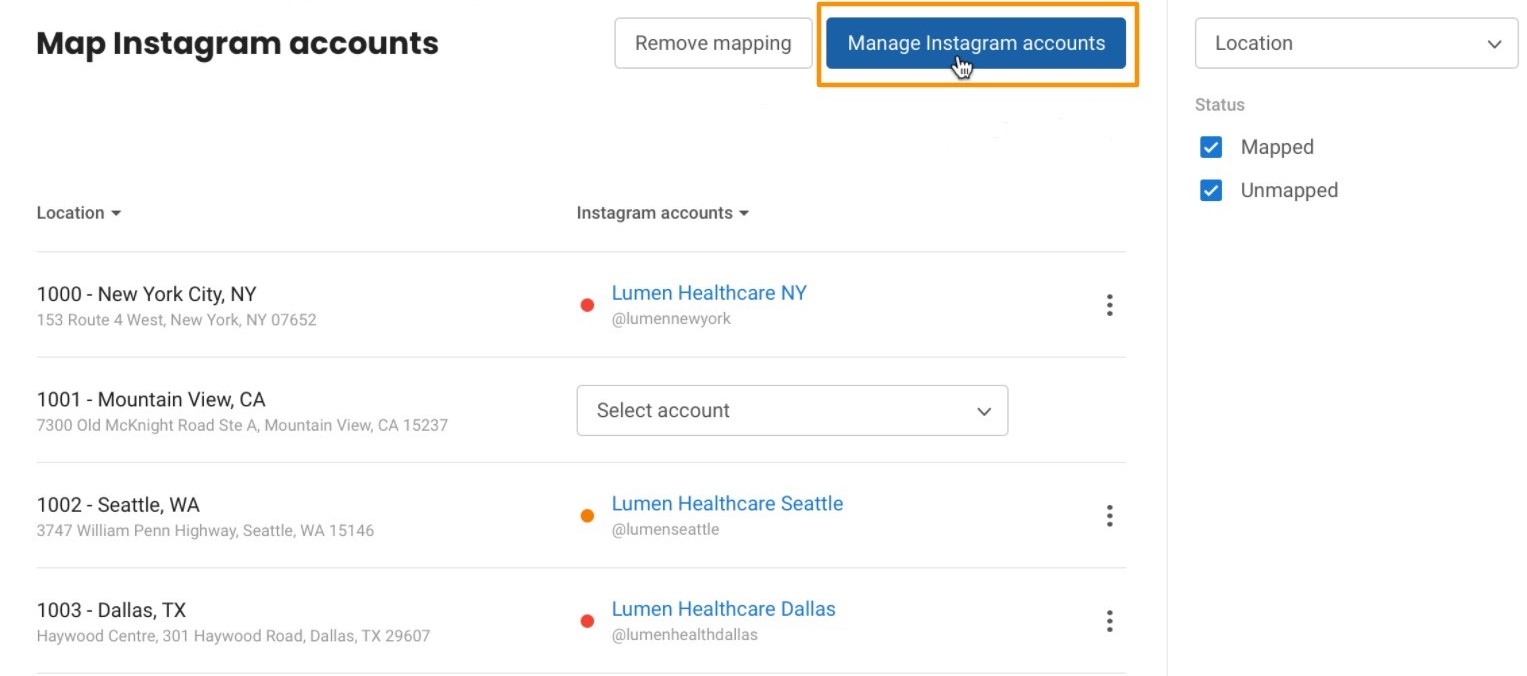
Click on 'Integrations,' select 'Instagram,' and click on 'Manage Instagram accounts.'
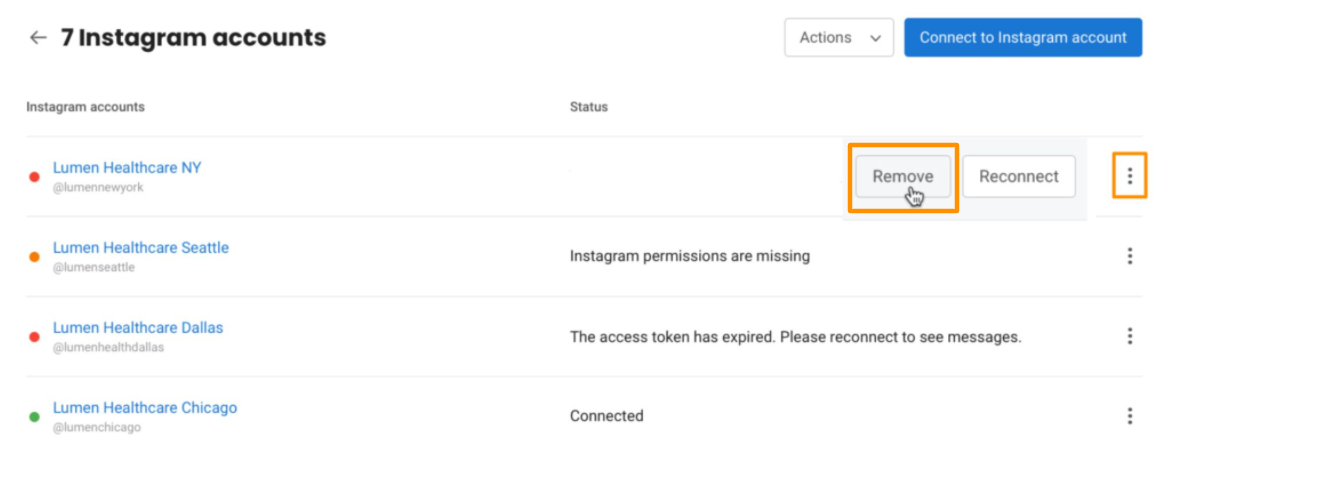
Hover over the 'Three dots' of the Instagram account you want to remove and click 'Remove'.
Removing Bulk Mapping
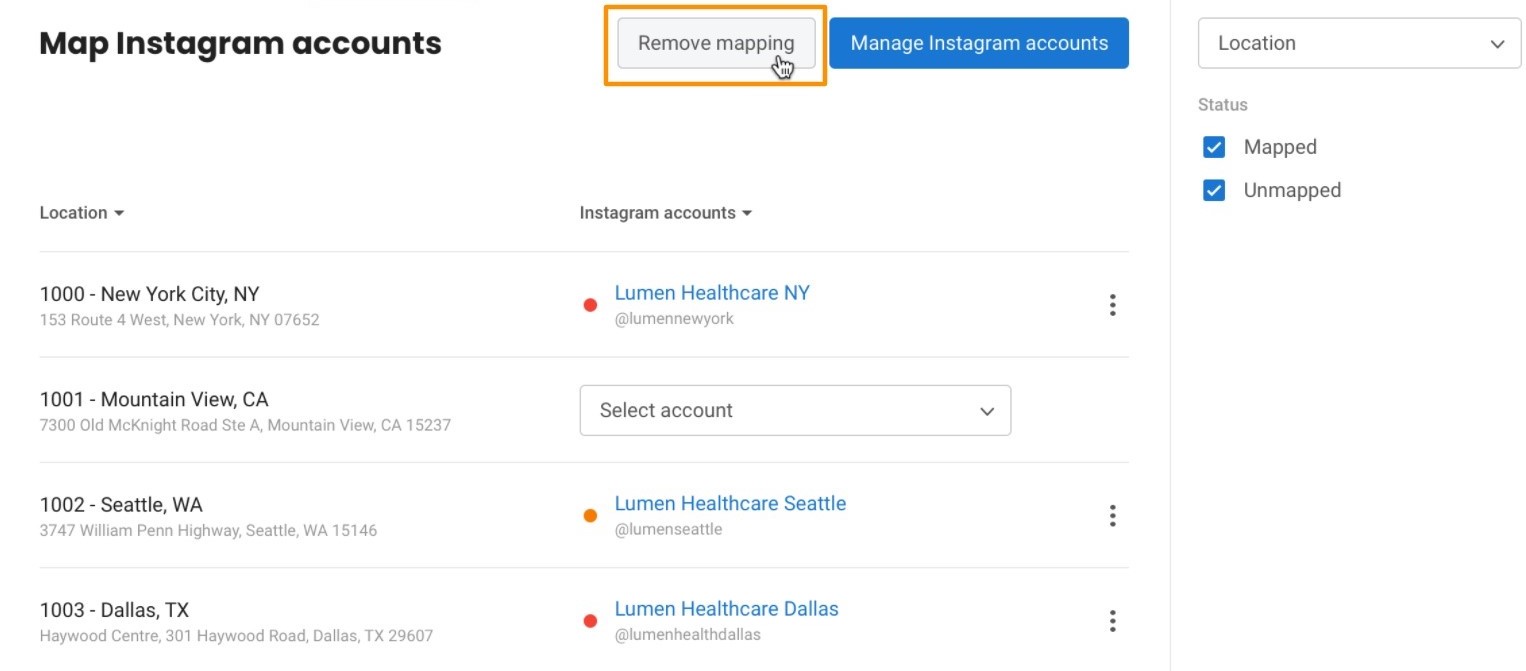
Click on 'Integrations,' select 'Instagram,' and click on 'Remove mapping' on the top.
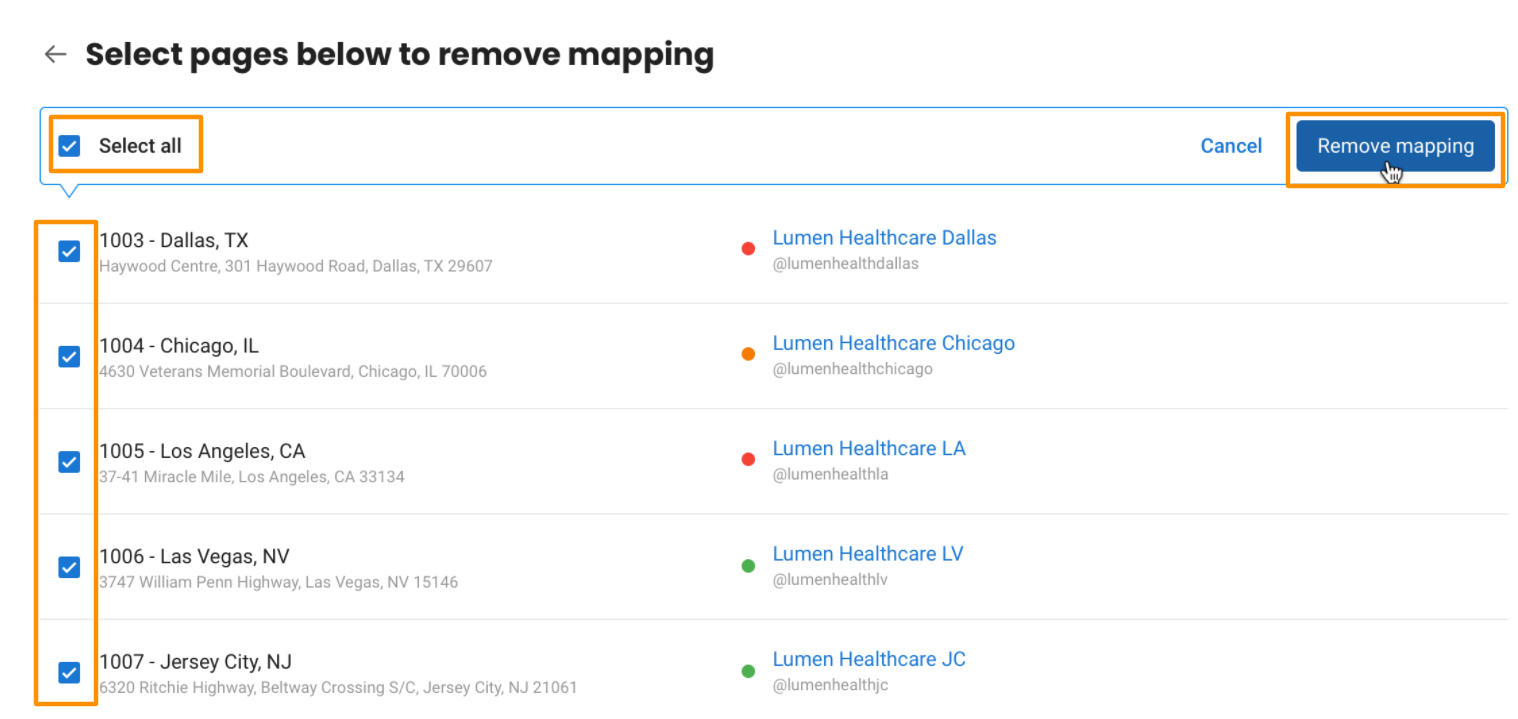
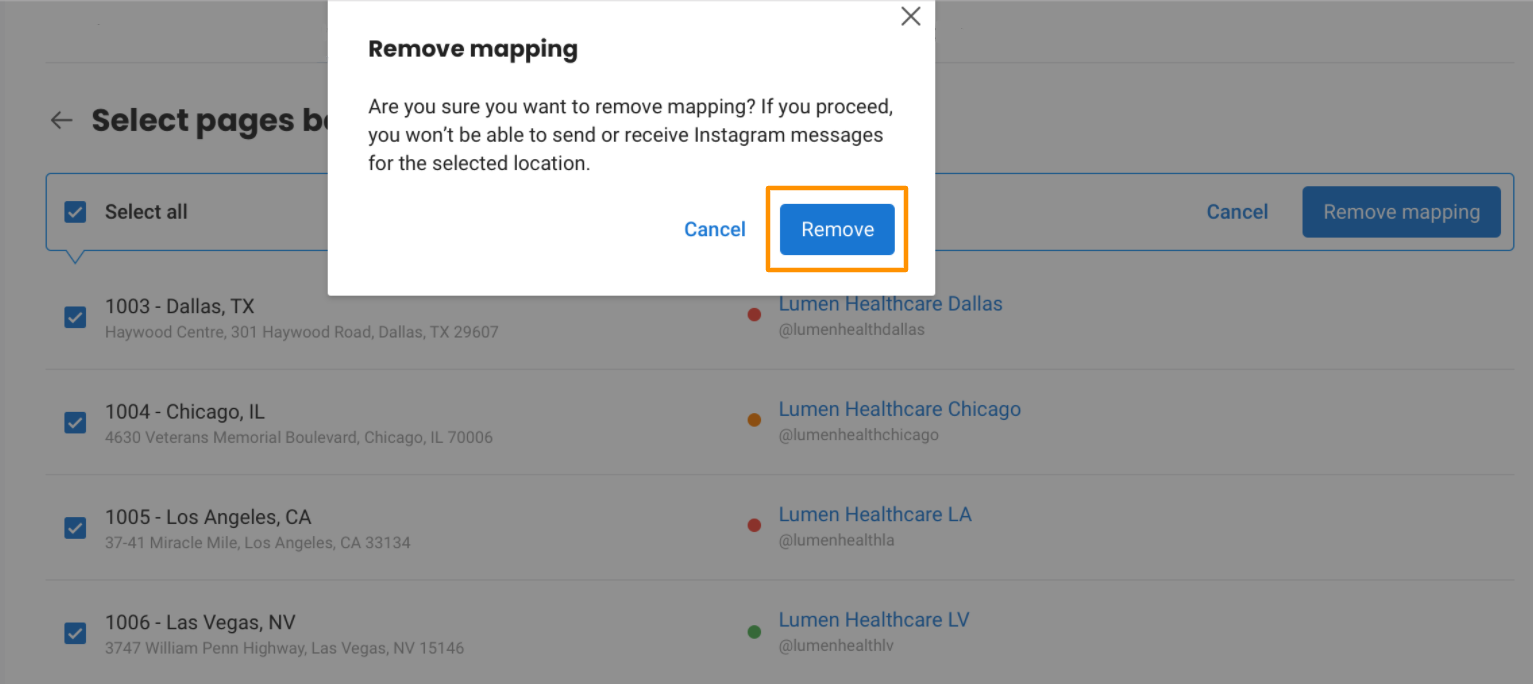
If you want to delete all the locations mapped with accounts, click 'Select all' and then click on 'Remove mapping' on the top right.
Click 'Remove' to confirm the deletion.
Integrating Instagram Account with Local Club (Single Location)
After you connect your Instagram account with your Facebook, go to your Local Club dashboard, click 'Settings' on the left navigation rail, hover over the 'Integrations' tab, and click on 'Instagram.'
On this page, you can view 'Instagram' as one of your social accounts to be integrated. Click on 'Connect' to begin integration.
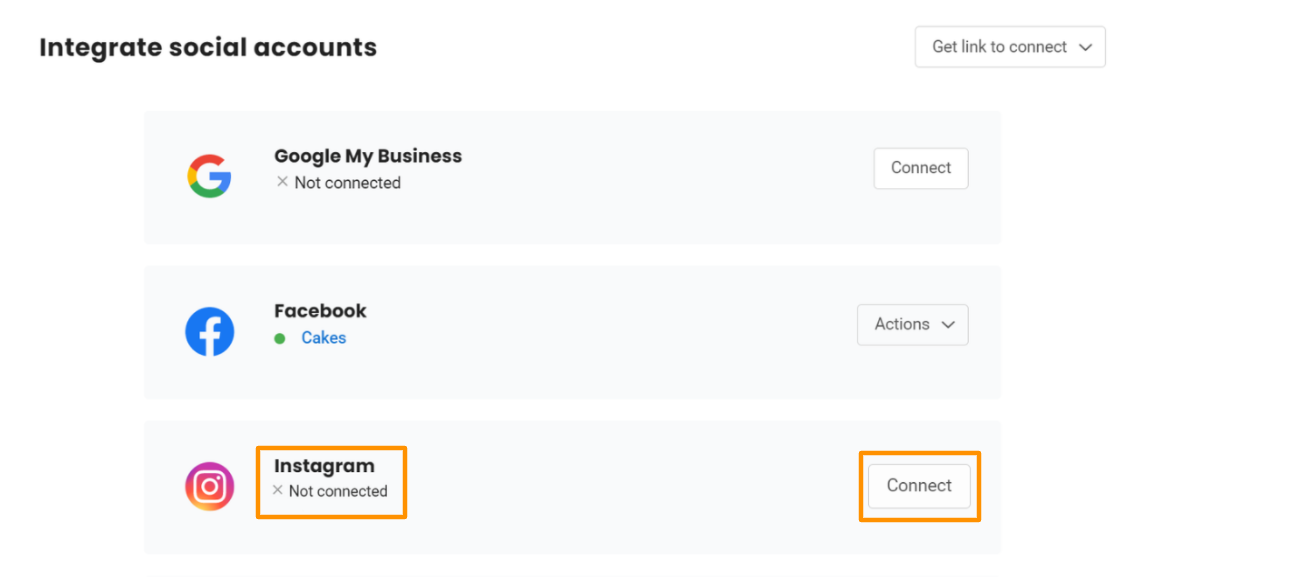
After you click on 'Connect,' you can follow STEP 1 to STEP 4 as provided under 'Integrating Instagram pages with Local Club account (Multi-location).'
NOTE:
The single location account will not have an option of 'Remove mapping.'
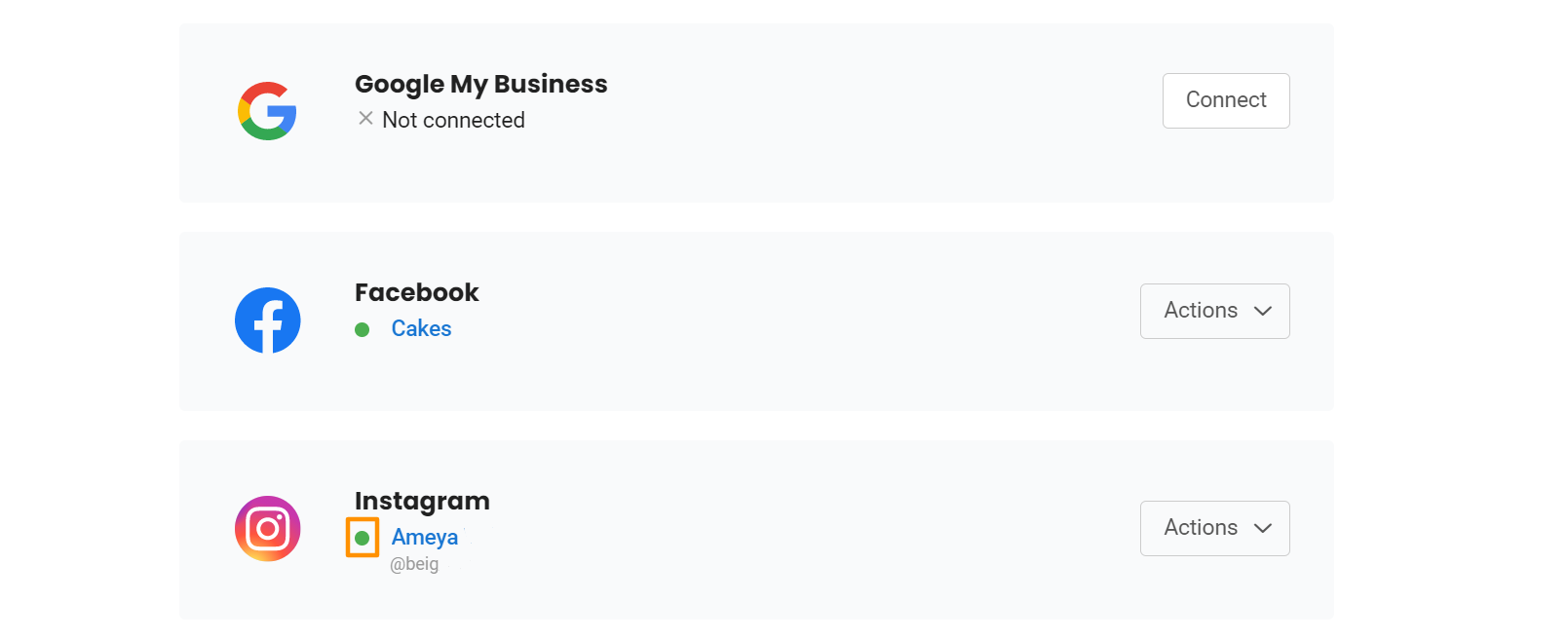
Once connected, you can view your 'Instagram' integration account status online.
Removing the Instagram Account
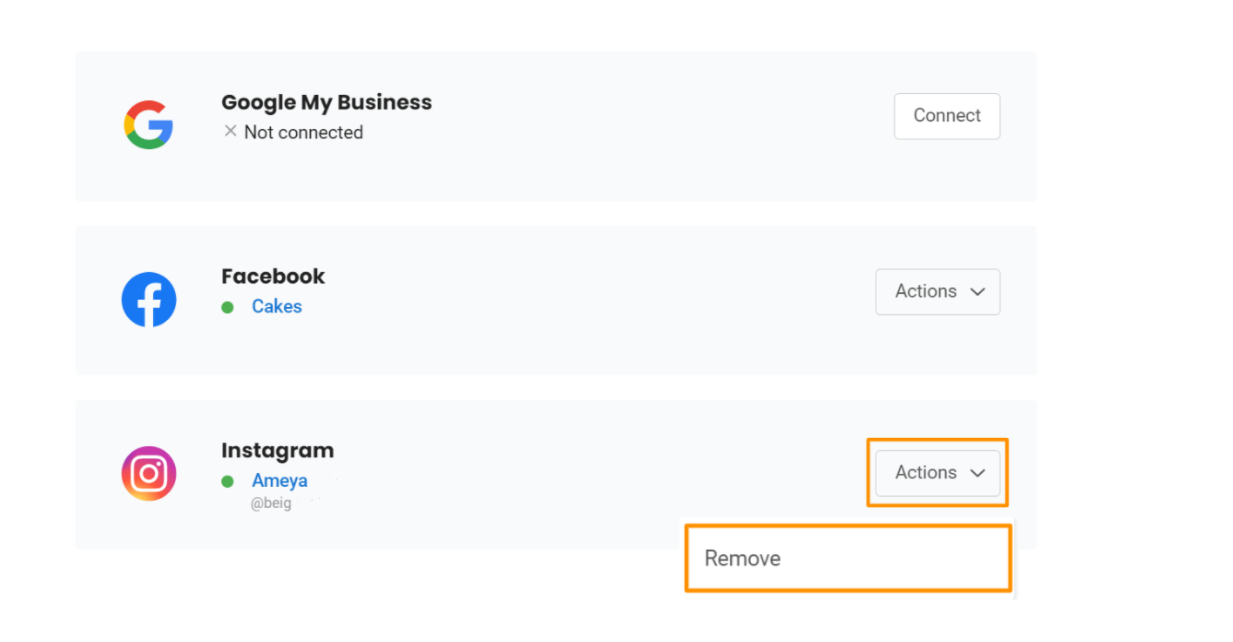
Hover over 'Integrations,' go to 'Instagram,' click on the 'Actions' button parallelly to your 'Instagram' account, and then click 'Remove.'
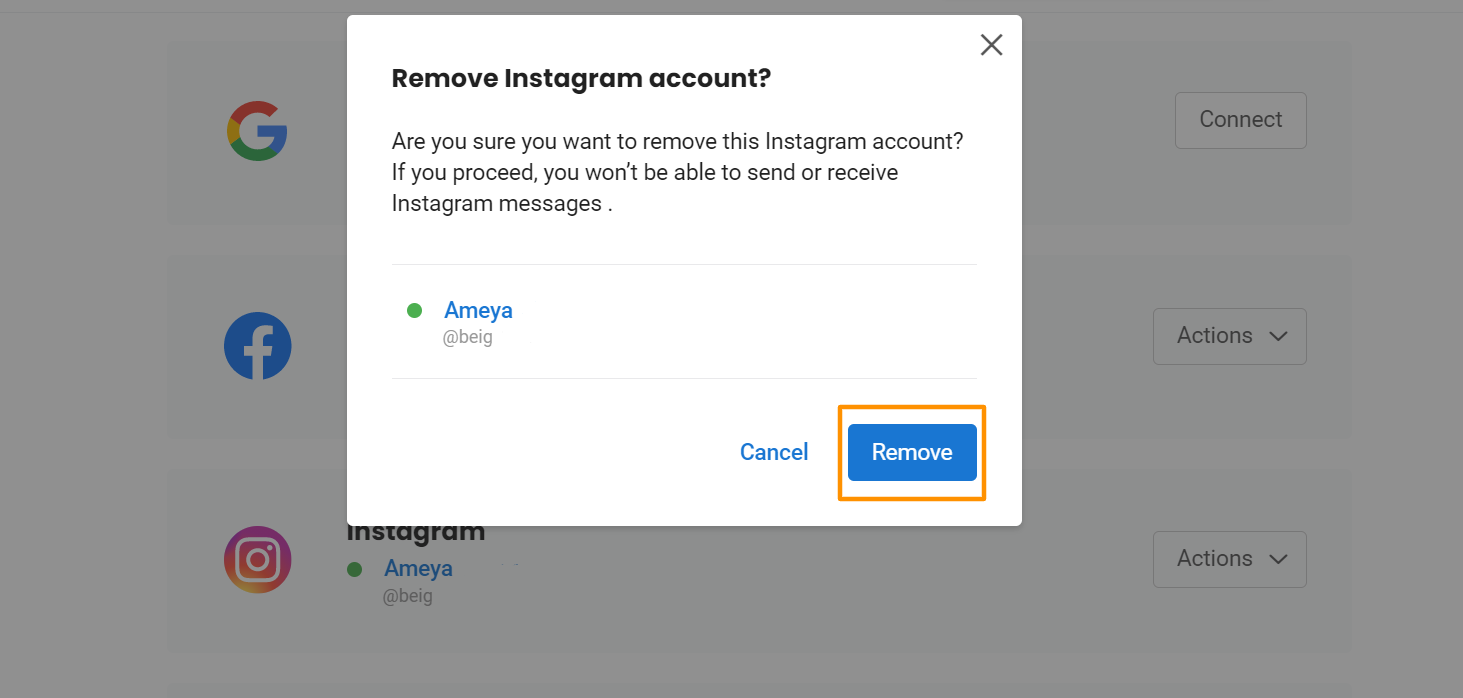
Click 'Remove' to confirm the deletion.
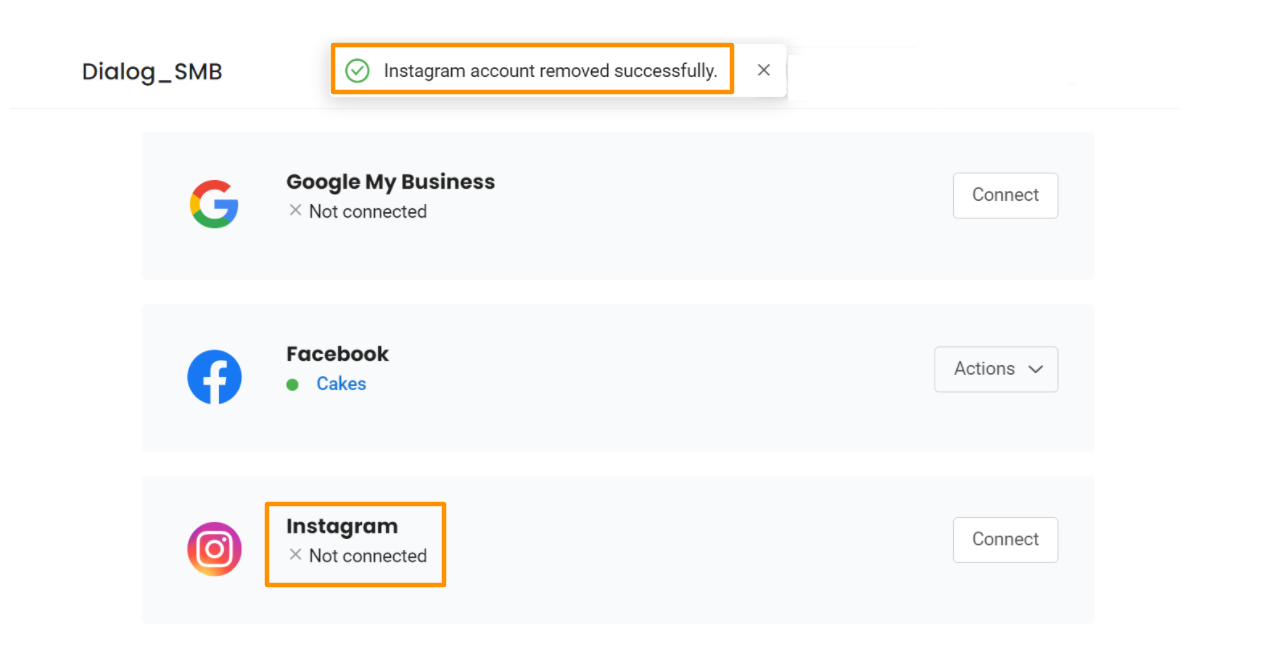
The account is removed successfully, and the same message will appear on the screen.