A business with multiple locations is likely to have separate review listings for each location. Sometimes, a customer may accidentally post a review for a different location than the one they visited. This may not usually have any impact, and you can leave it as is.
However, if you incentivize location managers based on the number of reviews they receive, it may be necessary to set the record straight by reassigning reviews to the correct location.
You can do this by reassigning reviews to the correct location, either individually or in bulk.
Please note that this reassigning of reviews only affects review attribution within the Birdeye dashboard. It does not change how the reviews appear on the third-party site on which they were written.
Navigation Menu
Single review reassign
If you notice a review has been posted for an incorrect location in your 'Reviews' tab, hover over the 'More' icon and from the drop-down menu, click on the 'Reassign location' button.
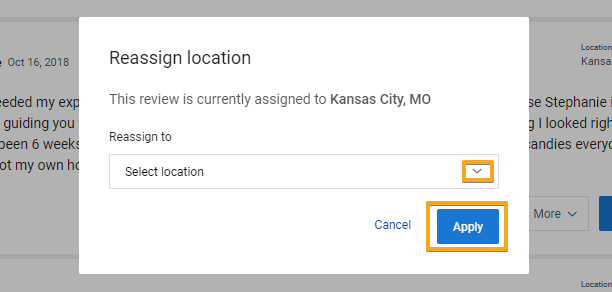
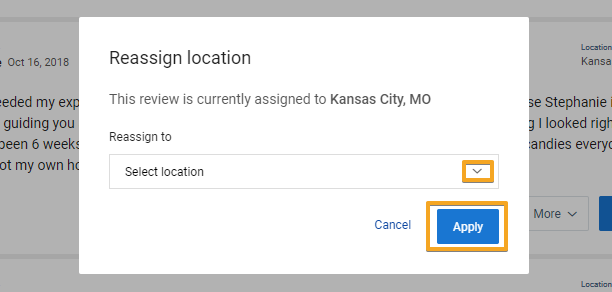
A window will appear with the option to select a new location. Once you have found the correct location, click on the 'Apply' button.
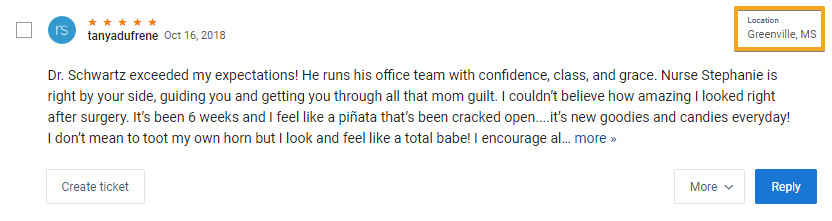
You should now see the correct location displayed in the top right corner.
The reassigned review will also appear when you filter your review feed for the updated location.
Changes are automatically synced with all reports, including spreadsheet and PDF downloads.
Bulk review reassign
To reassign reviews to their correct location, select the desired reviews and click on the icon at the top of your feed that displays two arrows.
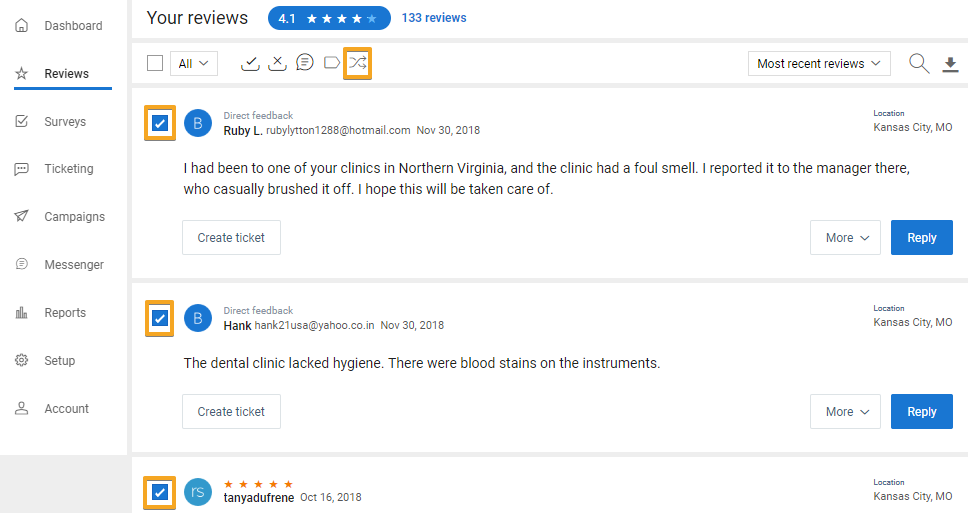
The same window will pop up. Select the correct location, click on “Apply” button, and all these reviews will be reassigned to that location.