
With Local Club, you can automatically respond to reviews using custom rules.
To learn more about creating auto-response templates, read this help article: How does Birdeye's review response template feature work?
Navigation Menu
(Single Location Account): Setting up Auto-Response RulesAdding a new rule(Multi Location Account): Setting up Auto-Response RulesAdding a new ruleTiming of auto-response
(Single Location Account): Setting up Auto-Response Rules
To set up auto-response rules, follow these steps:
- Click on the 'Settings' (⚙️) tab in the top navigation rail.
- Click on 'Reviews.'
- Select 'Auto-reply rules.'

Now, on the new page, you have the ability to customize and add new rules.
Here are the elements you can customize:
ELEMENTS | DETAILS |
Reviews From | Select the review source for which you want to configure auto-response. Select from Google, Facebook, Local Club, Direct Feedback or 'Any source'. |
Rating Is | Select the star ratings for which you want to add the rules. Star ratings are not available for Facebook reviews and direct feedback. For Facebook, you can select 'Recommended', 'Not recommended' or both options. For 'Direct Feedback', by default, you will see the 'has no rating' option under the 'review rating' drop-down menu. |
Review Text Is | Select 'is present' if there is a review text, otherwise select 'is not present'. You can also select both the options if you want to apply the rule to reviews no matter whether a review comment is present or not. |
Templates | Select an auto-response template that corresponds to this rule.
📣 NOTE:
You can add up to ten templates to auto-respond to reviews. Birdeye automatically replies to reviews using the added templates in random order |
Adding a new rule
To add a new rule, click on the '+ Add rule' button at the bottom left.
If you choose to add multiple rules, you can drag and drop rules to rearrange them on the basis of priority.
To view the rule edit history, click on the 'View rule history' button on the top right.

(Multi Location Account): Setting up Auto-Response Rules
Local Club enables multi-location business owners to manage auto responses efficiently by creating location-based rules.
Both enterprise and location-level users can create these rules within their accounts.
To set up auto-response rules, follow these steps:
- Click on the 'Settings' (⚙️) tab in the top navigation rail.
- Click on 'Reviews.'
- Select 'Auto-reply rules.'

Adding a new rule
To create a new rule, click on the ‘Add Rule’ button in the top right corner.
Start by using the pencil icon to give a name to the rule.
Next, select the locations for which you want to create this rule.

Now, you have the ability to add conditions to the rule.
NOTE:
You have the ability to create multiple conditions within a single rule. If a review satisfies more than one condition, the condition which is ranked higher will be applied.
Here are the elements you can customize:
ELEMENTS | DETAILS |
Reviews From | Select the review source for which you want to configure auto-response. Select from Google, Facebook, Local Club, Direct Feedback or 'Any source'. |
Rating Is | Select the star ratings for which you want to add the rules. Star ratings are not available for Facebook reviews and direct feedback. For Facebook, you can select 'Recommended', 'Not recommended' or both options. For 'Direct Feedback', by default, you will see the 'has no rating' option under the 'review rating' drop-down menu. |
Review Text Is | Select 'is present' if there is a review text, otherwise select 'is not present'. You can also select both the options if you want to apply the rule to reviews no matter whether a review comment is present or not. |
Templates | Select an auto-response template that corresponds to this rule.
📣 NOTE:
You can add up to ten templates to auto-respond to reviews. Birdeye automatically replies to reviews using the added templates in random order |
To add a new condition, click on the ‘+’ icon located at the bottom left. You can also edit or delete existing conditions, and change their ranking by dragging and dropping rules.
A newly created rule, with one or multiple conditions, will be visible on the auto-response rules page. All created rules will have the following information buckets: 'Rule Name', 'Location' assignment details, 'Last Updated', and 'Created by'.
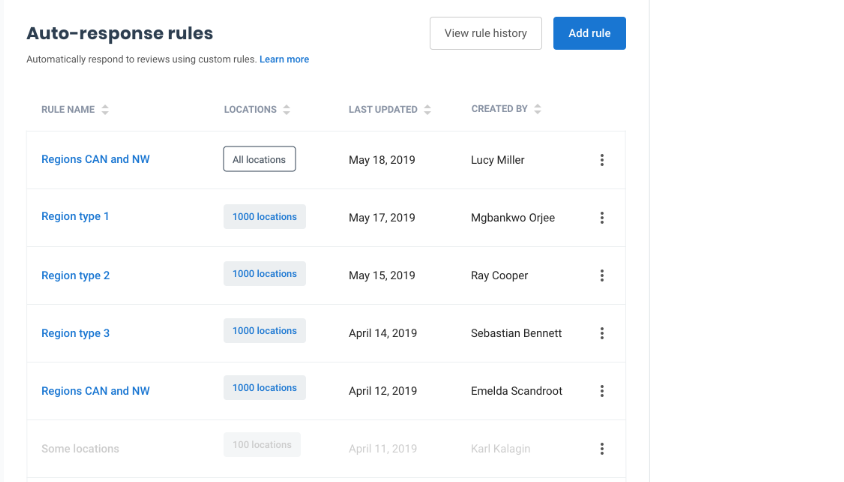
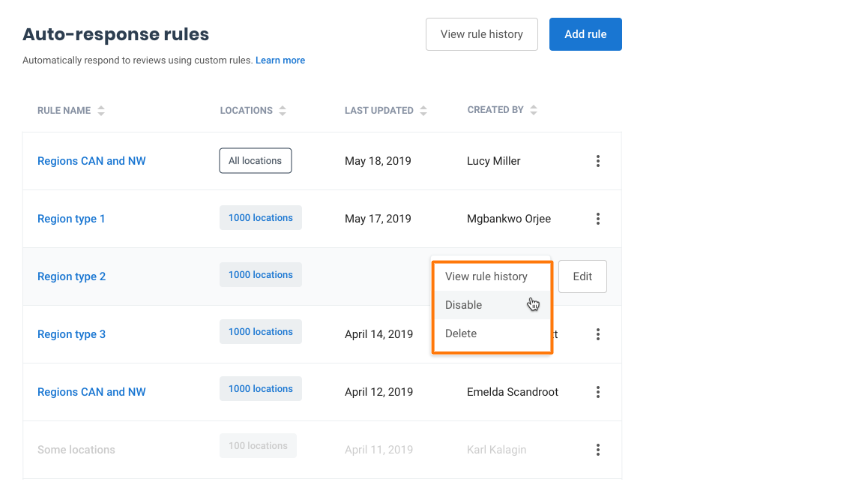
To view rule history, delete or disable a rule, hover over the three-dot icon next to the rule, and click on the ‘Actions’ drop-down menu. If you want to make edits to the rule, click on the ‘Edit’ button.
IMPORTANT
You have the ability to 'Enable' a disabled rule using the three-dot icon.
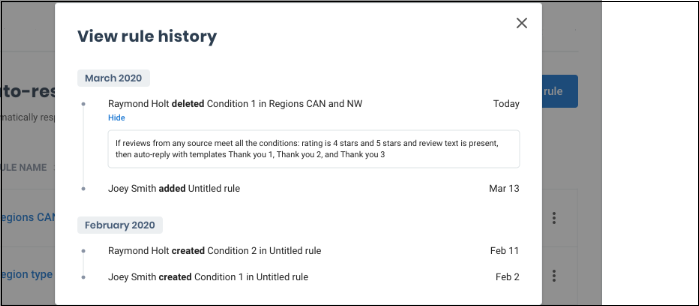
To view the rule history for all the rules added to your account, click on the 'View rule history' button located in the top right corner. All edits with user information will be visible, grouped by month, under the 'Month' view.
Timing of auto-response
Responses to reviews are usually posted about an hour after the reviews are aggregated and made available on the Local Club platform. This delay is helpful as it ensures that the responses do not appear automated to the customers who wrote the reviews.
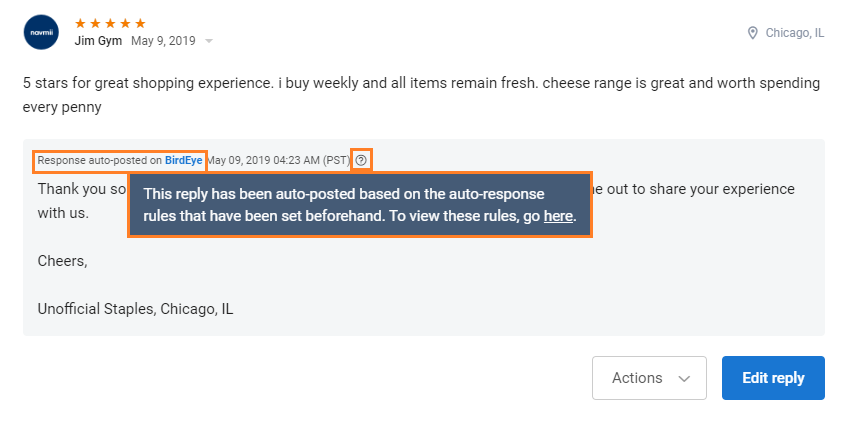
Some reviews may have automated responses posted, while others may have manually customized responses submitted by users. It is easy to identify reviews with automated responses, as they will have a stamp below the review that reads:
"Response auto-posted on <review site name>".
Handy Tip
We recommend following this best practice:
⭐️ - ⭐️⭐️: Auto-respond to 1 and 2-star reviews with apology templates.
⭐️⭐️⭐️ - ⭐️⭐️⭐️⭐️: Handle 3 and 4-star reviews manually.
⭐️⭐️⭐️⭐️⭐️: Auto-respond to 5-star reviews with "Thank you" templates.