When analyzing reviews, a business owner may find it useful to group reviews that have a common theme.
For example, if 8 out of 50 reviews mention an "unclean washroom," the business owner can add a tag to each of those reviews to address the underlying issue or highlight a common trend.
NOTE:
This functionality is only available for multi-location accounts.
Navigation Menu
Adding a review tag
To tag a review, log into your Local Club account and click on the ‘Reviews’ tab on the left navigation rail.
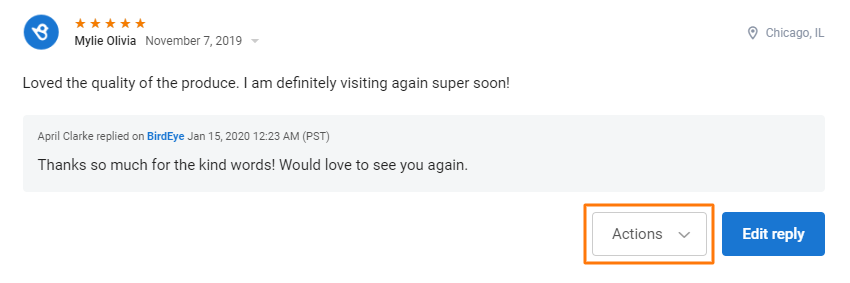
Now within the new page, click on the 'Actions' drop-down menu which appears under the selected review.
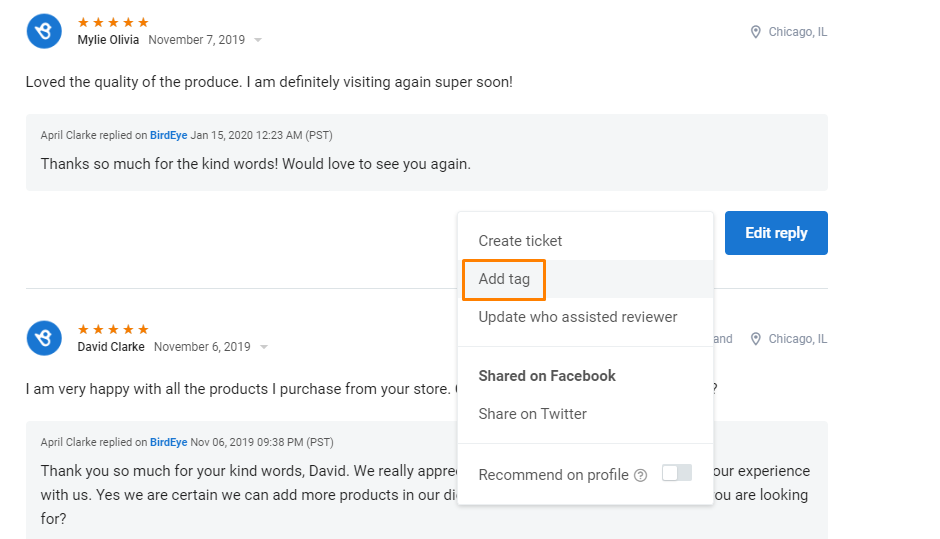
From the drop-down menu, click on the 'Add tag' option.
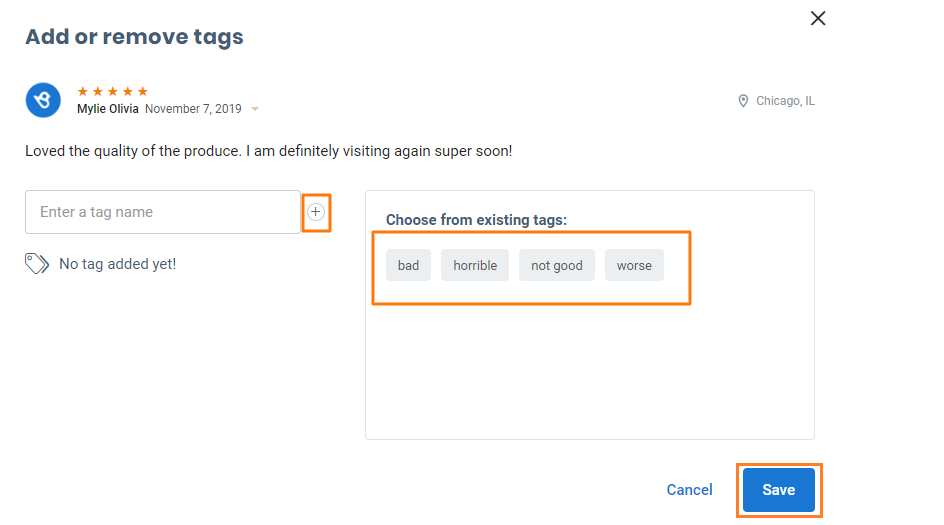
On the new window, you can create a new tag or you can select from the list of tags that you have created in the past.
Make sure to press enter or click on the '+' icon to add a new tag. The existing tags are readily available to choose from as well.
Once you have added a tag, click on the 'Save' button on the bottom right.
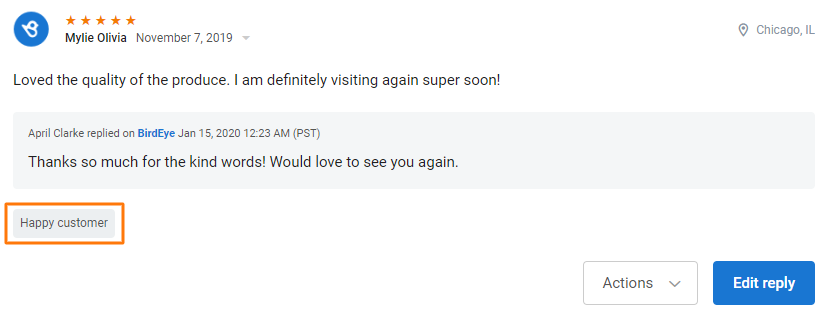
After you have added the tag, it will appear under the selected review.
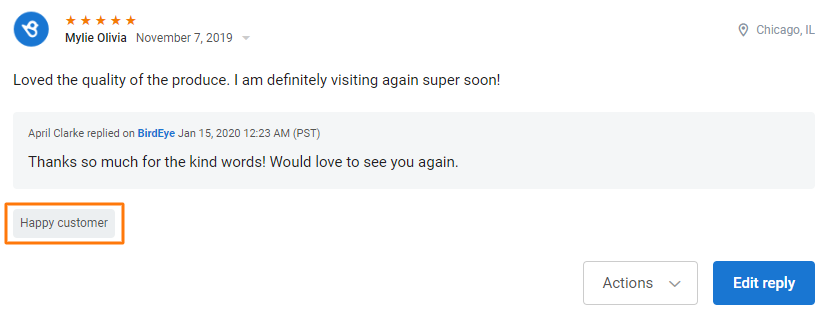
Adding review tags in bulk
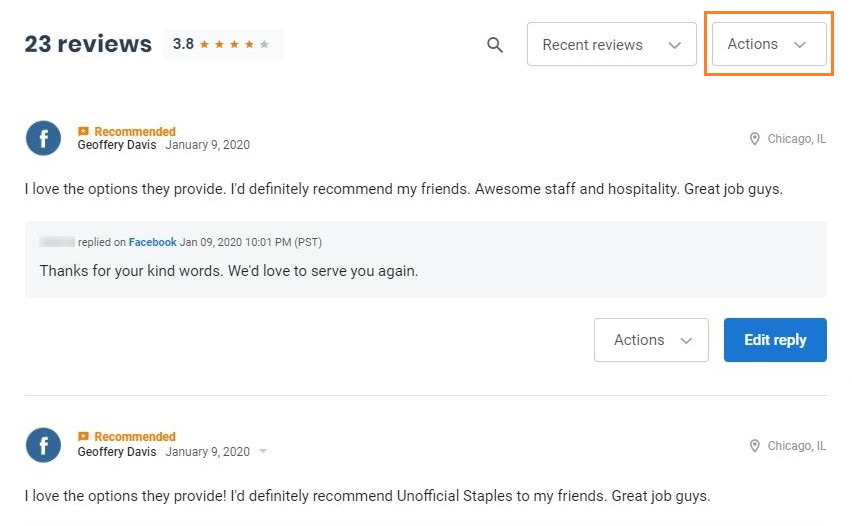
To tag reviews in bulk, click on the 'Actions' drop-down button placed at the top of the reviews list.
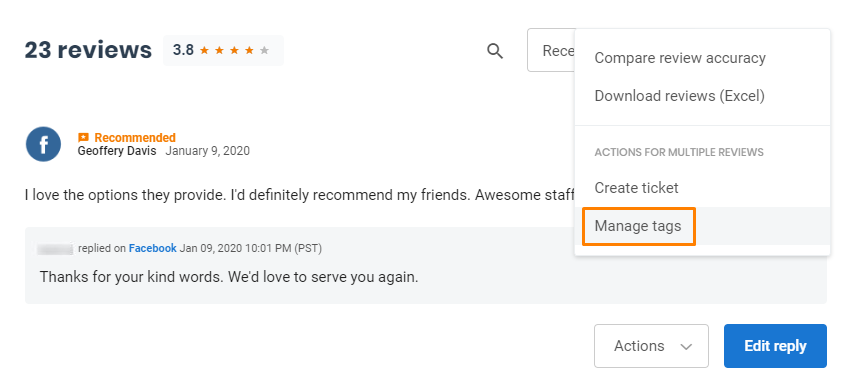
Then select the 'Manage tags' option to begin adding tags in bulk.
Now, select the reviews that you wish to add or manage tags in. Once you have selected the reviews, click on the 'Manage tags' button.
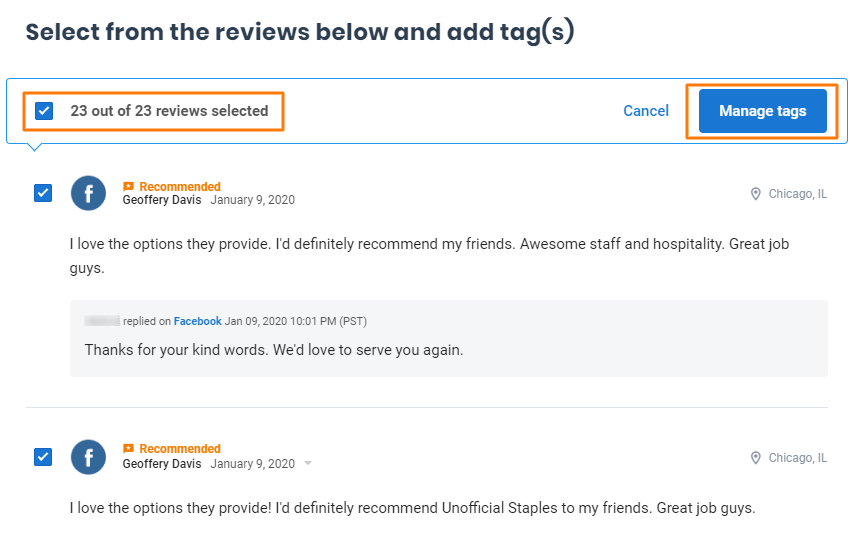
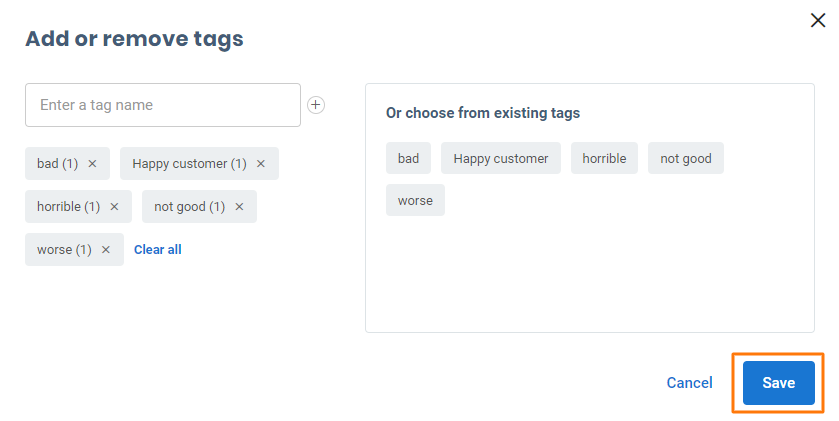
A pop-up page will appear where you can add or remove tags attached to your reviews.
The page will display the number of reviews attached to the tags and show the existing tags you can add.
To remove an existing tag, click on the corresponding 'Cross' icon on the tag. After making the changes, click the 'Save' button located at the bottom right.
Once you have tagged the reviews, you can view the tagged reviews using the 'Filter by Tag' filter.
Click on the 'See all filters' button and from the pop-up window, click on the 'Tags' drop-down under 'Review information'.
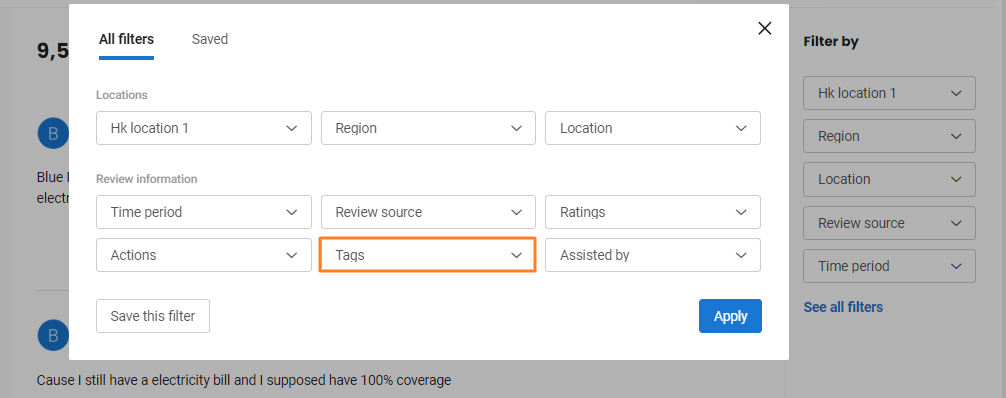
Select the desired tag(s) from the drop-down options and click on the 'Apply' button. Once applied, you will see all the reviews that reflect the selected tag(s).