Navigation Menu
After sending a review request to your customers, they have two options:
- To leave a public review for you on one of the review sites mentioned in the request email/text,
- To send you a private message by clicking on the "Contact us directly" button. This Direct Feedback Button helps you mitigate bad reviews. Reviewers are prompted to either write a review or contact you directly first to solve any customer issues they might have - this saves you from negative reviews and reputation.

INTERESTING TO KNOW
In a one-year study, 16% of customers who received review requests clicked the Contact Us button for direct feedback, which means businesses avoided 16% of negative reviews.
Let's say the customer decides to click on the 'Contact us directly' button and sends you a private message.

This message comes to you as an alert if you have subscribed to alerts.
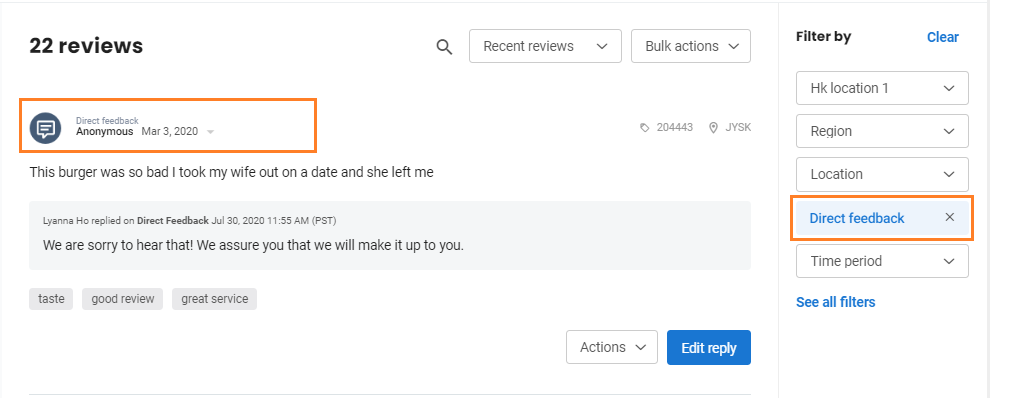
Moreover, these messages will be added to the 'Reviews' tab within your Local Club dashboard.
As this is private feedback from your customer and not a public review, we refer to it as 'Direct Feedback'. You can add tags to these for easy retrieval of similar feedback themes.
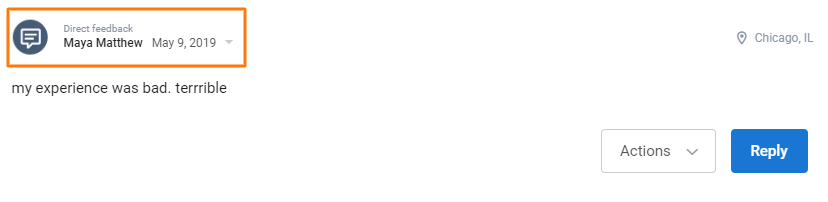
NOTE:
'Direct Feedback' messages can neither be part of 'Recommended' reviews nor can they be shared on your integrated social platforms.
Responding to ‘Direct Feedback’
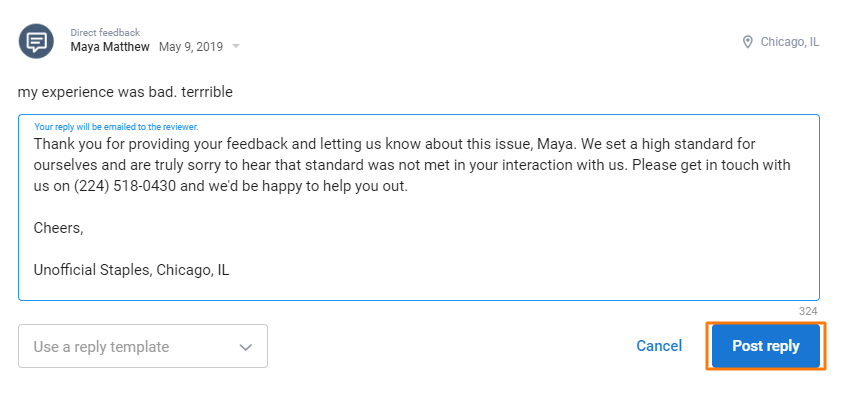
You can respond to 'Direct Feedback' from your customers, just as you respond to public reviews. To respond, simply click on the 'Reply' button at the bottom of the feedback message.
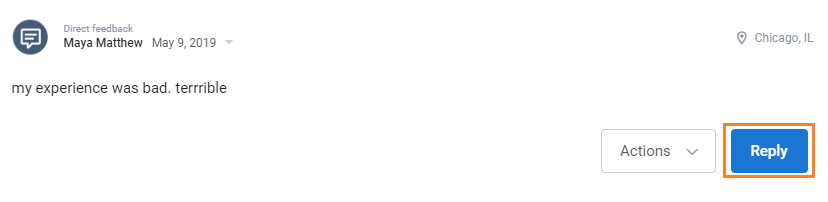
Once you click on the 'Reply' button, you can type in a custom response or select a response template already set up within your Local Club account. After you have entered your response, click on the 'Post reply' button.
NOTE:
The "Reply" that you post to a "Direct Feedback" is sent to the customer's email address captured on the "Contact Us" form.
Using filter settings
To view only "Direct Feedback" messages, click on the "Review Source" drop-down menu in the filter panel.

Then uncheck the 'Select all' option, select the 'Direct Feedback' option and click on the 'Apply' button.

All the 'Direct Feedback' messages will now be visible on the screen.